

Page: Actions
Who this is for: people who want to know which building blocks workflows can use.
Before you start: everyone can see the actions. To copy or write an action you need the Edit workflows permission.
Actions lists the building blocks of workflows: built-in actions, our curated platform library and your company’s own actions. Steps use an action with uses:, see Action references.
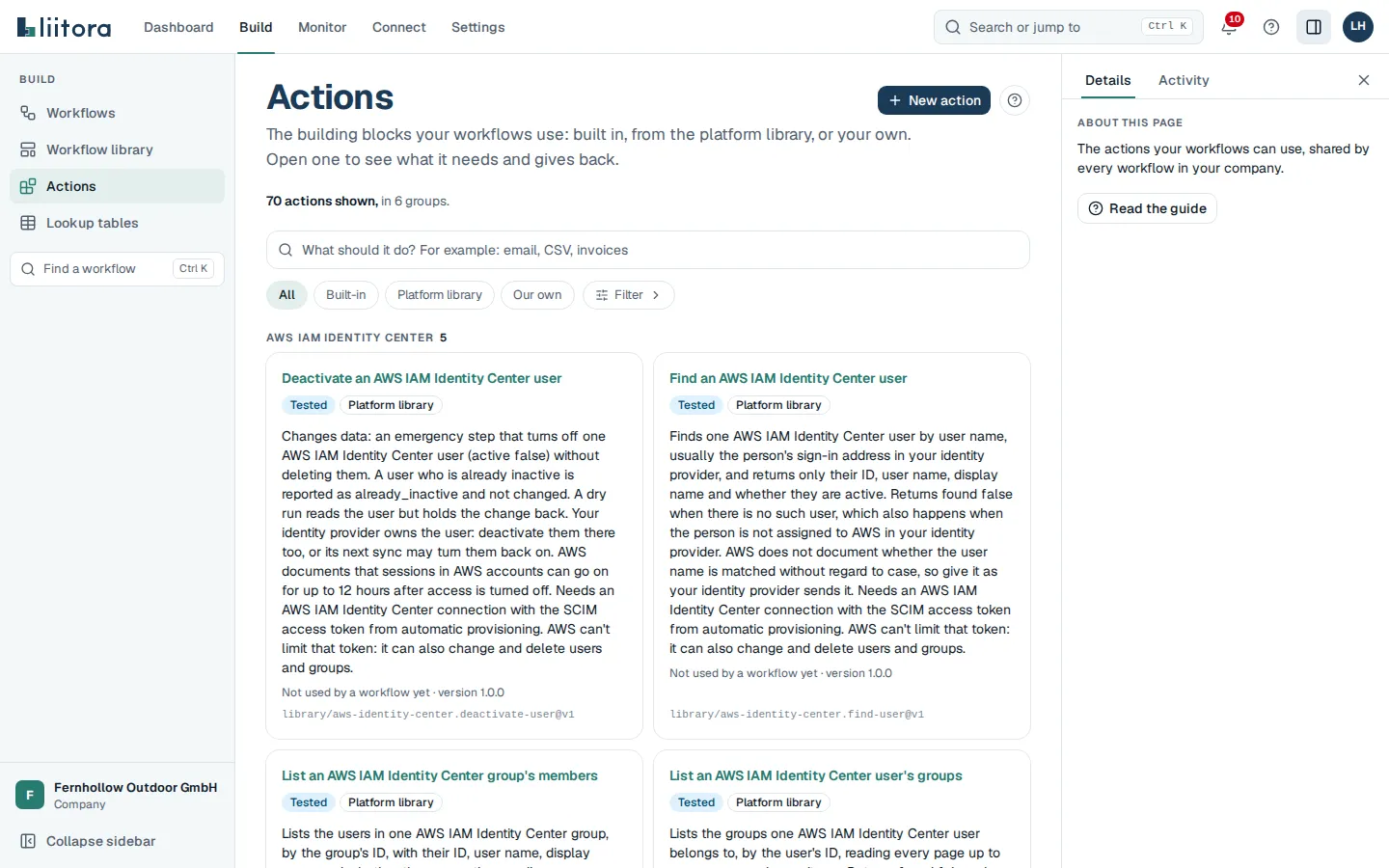
Find an action
Section titled “Find an action”Under the title, one line sums up the list, for example 42 actions shown, in 9 groups.
| Control | What it does |
|---|---|
| Find an action | Words in the name or description, for example email, CSV or invoices. |
| All, Built-in, Platform library, Our own | Quick switches for where an action comes from. |
| Filter | Opens two more choices: Category (Any category or one) and Status (Any status, Draft, Tested, Proven or Deprecated). While one is set, the button says Filter is on. |
When nothing matches, the page says No actions match and offers Clear filters.
The list
Section titled “The list”The actions come in groups by category, each under a small heading with how many actions it has. Your company’s own come first, then the built-in ones. Actions without a category come at the end, under Other. Every action in a group shows.
Each action is a card with its name in plain words, for example Call a web API, its status, where it comes from (Built-in, Platform library or Our own), a mark if it uses AI, and its whole description. Under that, how many workflows use it and its newest version, for example Used by 3 workflows · version 1.2.0. At the bottom, in small grey text, is how a workflow names it, for example platform/csv.build@v1. The statuses mean:
- Draft: saved, tests not green yet.
- Tested: its tests pass.
- Proven: its tests pass and it runs well in production.
- Deprecated: still works, but use a newer version.
One action
Section titled “One action”Select an action’s name to open it in a panel on the right, without leaving the list. Open it as a page opens the same view as its own page, with an address you can share.
- At the top: what kind of action it is, how many workflows use it, whether its tests pass and how many connections it needs.
- What it needs: the fields a step gives it, each marked Required or Optional.
- What it gives back: the fields it returns.
- Its tests: for your own and platform-library actions, each test with Passed or Failed.
- A platform-library action says that you can’t change it, and that you can make your own copy to change.
- A copy says Copied from with the original’s name and version, and a See the original link.
- Show technical details shows how a workflow names the action (its reference, for example
platform/csv.build@v1), the connection names a step must fill in, the Version picker, the full Input and Output schemas and, for your own actions, the Source.
Your company’s own actions are visible only to your company. Versions never change after they are saved: a change is always a new version. See Action references for version numbers, schemas and connection slots.
Built-in actions are part of Liitora. Use them directly in any workflow; they can’t be copied. The built-in actions reference describes each one.
Make your own copy of an action
Section titled “Make your own copy of an action”- Open a platform-library action or one of your own.
- Select Make our own copy.
- Enter a Short name, for example
fetch-devices. Workflows then use it as<your company>/fetch-devices. - Enter a Name and select Make the copy.
You get your own copy of that version to change. It starts at version 1.0.0, so workflows use it with @v1. The original stays as it is.
When there are no actions
Section titled “When there are no actions”If nothing is listed at all, the page says Write your first action. People who can edit workflows get a Write an action button there.
Write an action
Section titled “Write an action”To write a new action, select New action on the Actions page. To change one of your company’s own actions, open it and select Add a new version. Saved versions never change, so a change is always a new version. A platform-library action has no Add a new version button: make your own copy first, then change the copy.
| Field | What to enter |
|---|---|
| Short name | Lowercase letters, numbers, dots, hyphens and underscores, for example fetch-devices. Workflows use it as <your company>/fetch-devices. New actions only. |
| Name, Description and Category | How the action shows under Actions. New actions only. |
| Version | Three numbers, for example 1.0.0. A new version starts at the next number, for example 1.2.1 after 1.2.0. A change that breaks workflows using the action needs a new first number. |
| Script | JavaScript or TypeScript that exports one function, export default async function run(ctx, input), and returns the output. |
| Input schema and Output schema | JSON Schemas. The step form in the workflow editor is built from the input schema. |
| Connections it needs | A JSON object of slot names, for example { "erp": { "kind": "generic_http" } }. Each workflow step binds a connection to each slot. |
| Tests | A JSON list of test cases. A version starts as Draft and becomes Tested when its tests pass. |
Select Save the action or Save the version. Liitora checks the script, the schemas and the tests first. Each problem shows under its field with what went wrong and how to fix it. A problem at a line has a button such as Line 2, column 9 that moves the editor to that line. Nothing is saved while there are errors.