

Take a library workflow into use
Who this is for: people who build workflows, and the admins who approve them.
Before you start: to ask for a workflow you need the Edit workflows permission. To approve a library request you need both the Approve workflows and Edit workflows permissions, and you must be a different person from the one who asked. Everyone who can see workflows can read the library.
The Workflow library in Liitora lists ready-made workflows that Liitora wrote, tested and signed. Taking one into use takes two people: one asks for it, and another approves the library request. Liitora then checks the workflow’s content hash and signature again and copies it into your company as a draft workflow. The copy still needs green tests and the normal approval before it runs.
Find a workflow
Section titled “Find a workflow”- Open Workflow library.
- Type a few words in Search the library, for example
certificatesorEntra, or scroll the list. - Each card shows what the workflow can use and do in one line, its version and its publisher. Signed by Liitora means Liitora checked the signature and the content hash when the page loaded. A workflow that fails the checks isn’t shown at all.
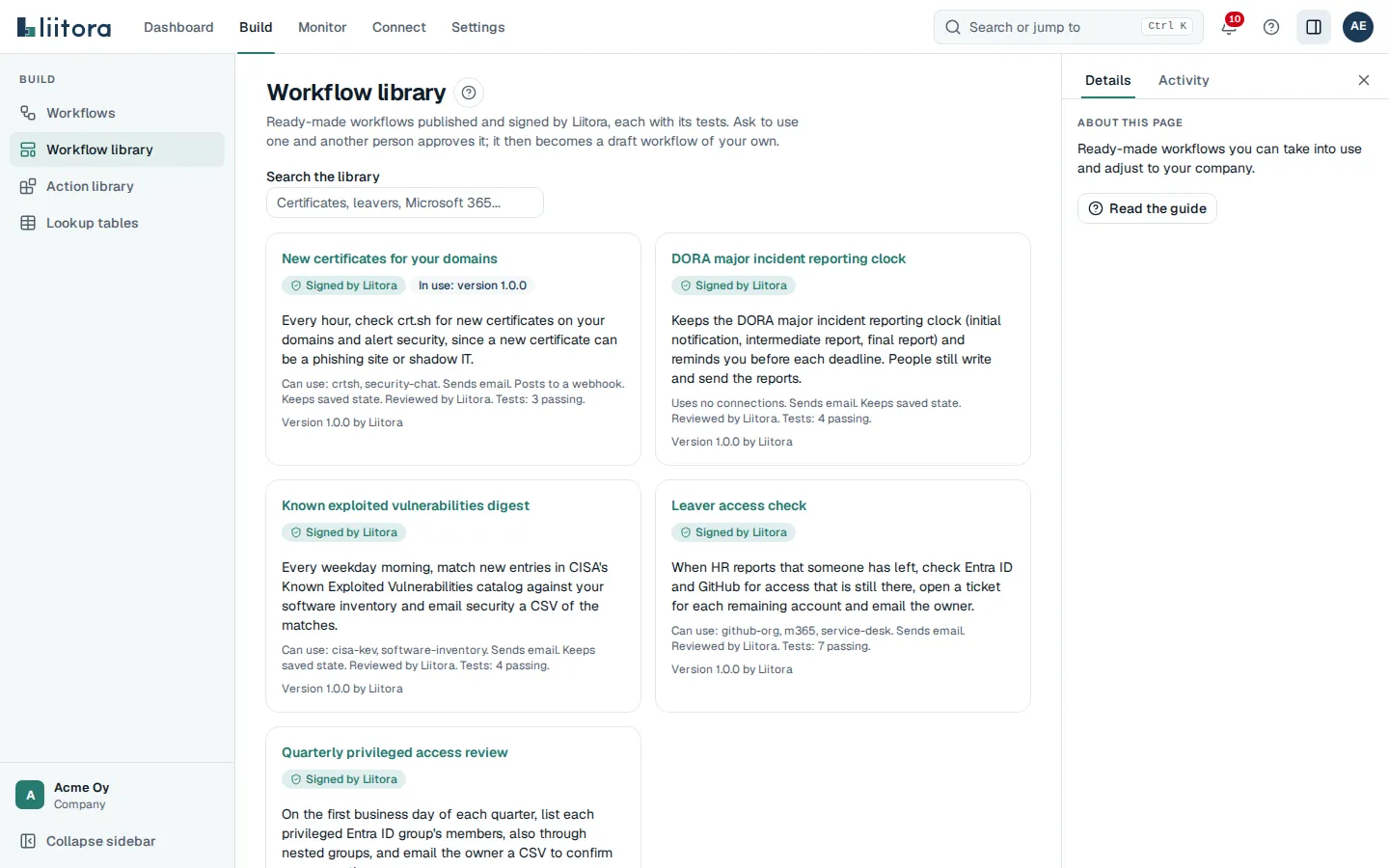
Badges on a card tell you more:
- In use: version 1.0.0: your company already has a copy of that version.
- Newer version available: a newer version than your copy exists. Asking for it makes a new draft; your copy isn’t changed.
- Waiting for approval: someone asked for this version and a person hasn’t decided yet.
- Flagged: Liitora found a problem with this version. It can’t be taken into use. Copies your company already made keep running until someone pauses them. See If Liitora flags a version you use.
- Needs your own runner: it reaches systems inside your network, so it runs on a runner in your own environment.
Read what it does
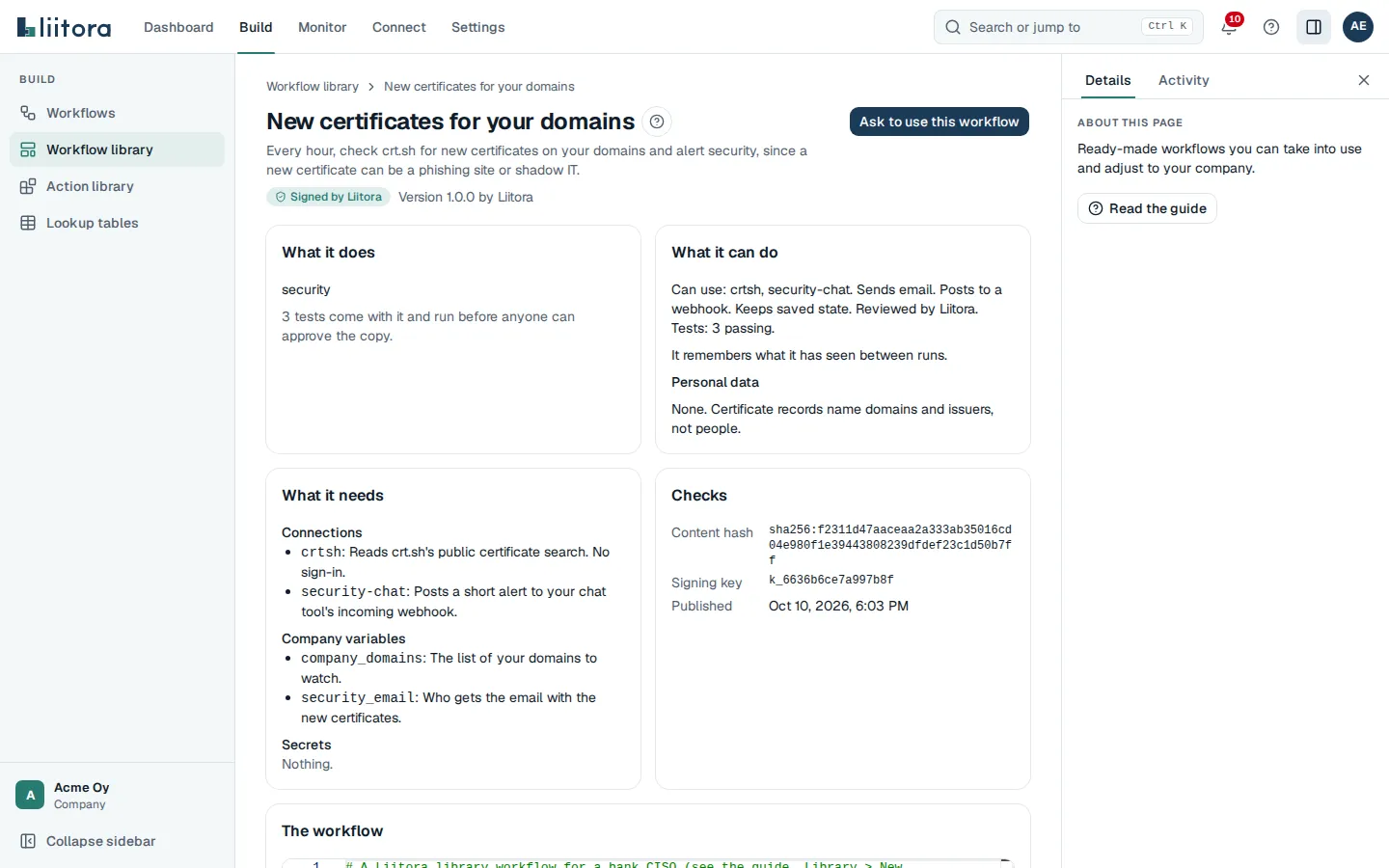
Section titled “Read what it does”Open a workflow to see, before you ask:
- What it does, and how many test cases come with it.
- What it can do: the systems it reads and writes, whether it remembers anything between runs, and the personal data it handles.
- What it needs: the connections, company variables and secrets your company must set up. See Create a connection and Use company variables.
- The workflow itself, as YAML, and its Read me, Changes and Versions.
- Checks: the content hash, the signing key and when it was published.
The library is also public in this guide, in The workflow library.
Ask to use it
Section titled “Ask to use it”- On the workflow’s page, select Ask to use this workflow.
- Check Name of the new workflow. It starts as the library name. Change it if your company already has a workflow with that name: lowercase letters, digits and hyphens, at most 63 characters.
- If you like, write Why you need it for the approver, up to 1000 characters.
- Select Send the request.
The request opens and waits for a person who approves workflows. Only one request per version can wait at a time.
Your AI assistant can ask for you with the request_library_item tool. It can never approve a library request: there is no tool for that, and the request page shows that an AI agent asked.
Approve or reject a library request
Section titled “Approve or reject a library request”- Open Workflow library and select the request under Requests, or follow the link someone sent you.
- Read who asked, the note and the workflow’s page.
- If you like, write a Note for the record. It is kept with the decision.
- Select Approve and copy, or Reject.
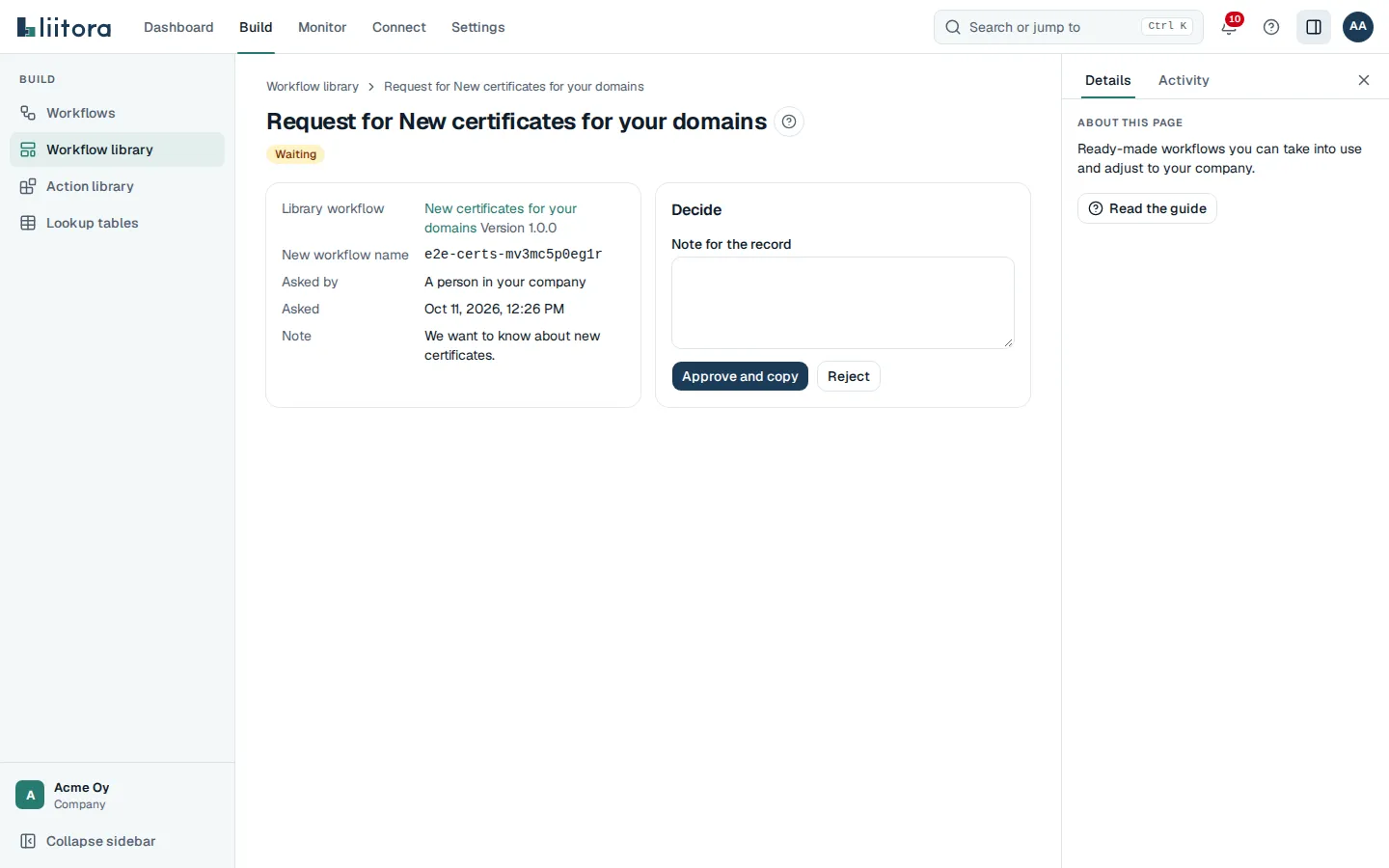
When you approve, Liitora checks the content hash and the signature once more, makes a new draft workflow with the workflow, its test cases and a record of where it came from, and starts its tests. Select Open the draft workflow to continue. Then set up what it needs, read its tests and approve it like any other workflow.
The rules for deciding:
- The person who asked can’t approve their own library request. That includes a request their AI assistant or API token made for them. They can reject it, which withdraws it.
- If you are your company’s only approver and you asked yourself, you may approve your own request for a workflow published by Liitora. Tick the box that confirms it first. This is recorded in the audit log. If your company turned on require second approver, another person must approve.
- A decided request can’t be changed. Ask again if you need the workflow after a rejection.
- Each request, approval, rejection and copy is recorded in the audit log.
Updates
Section titled “Updates”Liitora never changes your copy. When a newer version is published, the card says Newer version available.
- Open the workflow. Under What changes from version 0.9.0 to 1.0.0 (with your versions), Liitora compares the version you use with the newer one before you ask for anything.
- Read the parts marked New or Changed first. They show where the workflow sends data, and the connections, secrets, actions and scripts the newer version adds or changes. If the newer version can reach something yours can’t, a yellow note at the top says so.
- Read the Changes written by Liitora. Open Every change to the workflow to see the whole workflow compared line by line.
- When you are happy with it, ask for the new version under a new workflow name, test it, and archive the old workflow when you are ready.
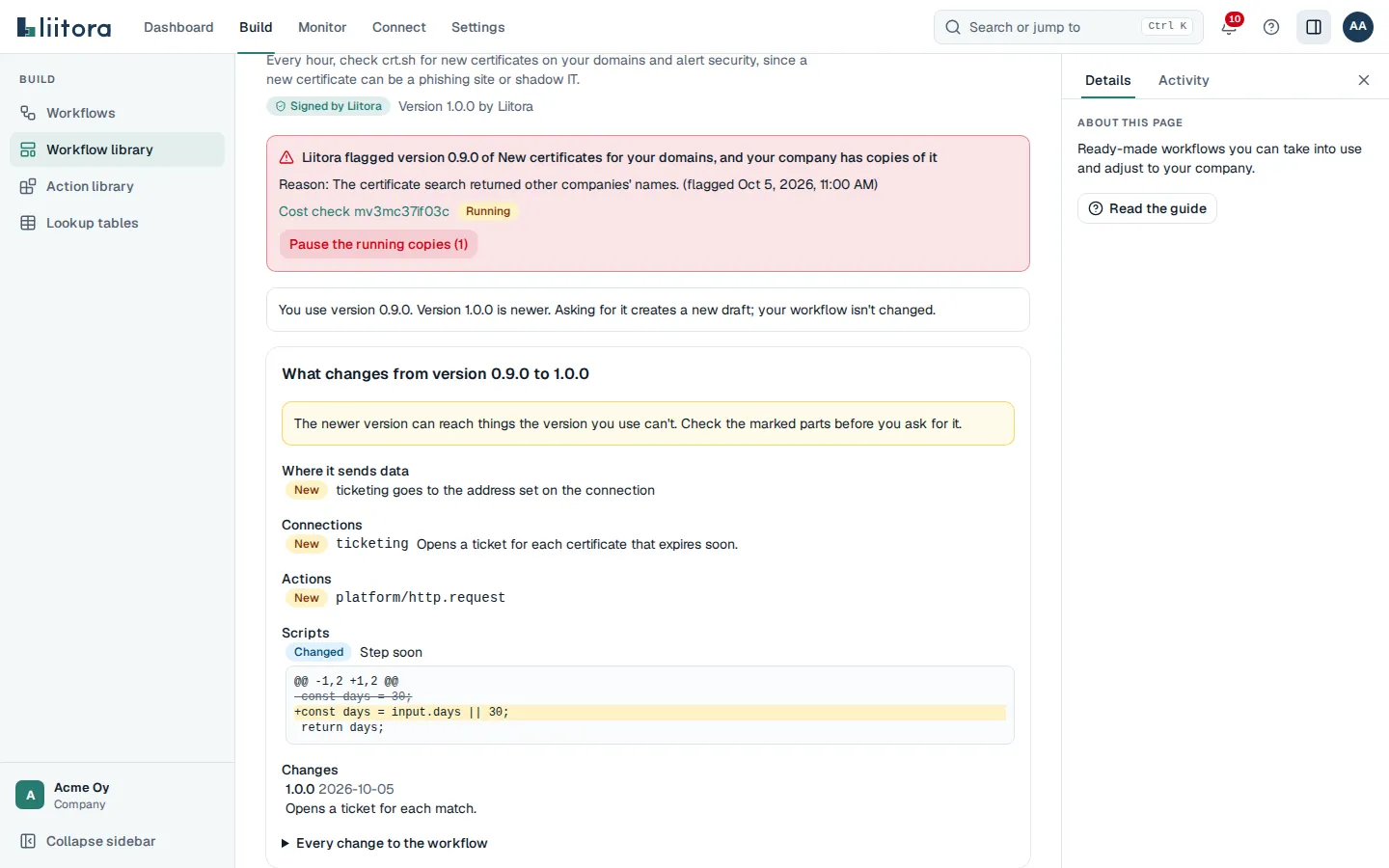
Where a workflow sends data is shown per connection. A library workflow never contains a full address; your company sets it when it sets up the connection, so a new connection is where new data can go.
Your AI assistant and API tokens can read the same comparison with GET /api/v1/library/items/{slug}/diff.
If Liitora flags a version you use
Section titled “If Liitora flags a version you use”If Liitora finds a problem in a version your company copied, you hear about it in three places:
- A red notice at the top of Workflow library and on the workflow’s page names the version, Liitora’s reason and your workflows made from it, with their status.
- An alert, A workflow copied from the library was flagged, opens in Alerts and follows your alert rules.
- Every admin of your company gets an email, even if your alert rules send other alerts elsewhere. Admins who turned off their alert emails don’t. The email names the version, the reason and the workflows, and links to the workflow’s page. It never contains the workflow itself.
To stop the copies in one step:
- Open the notice and select Pause the running copies.
- Read the list of workflows that will pause, then select Pause them.
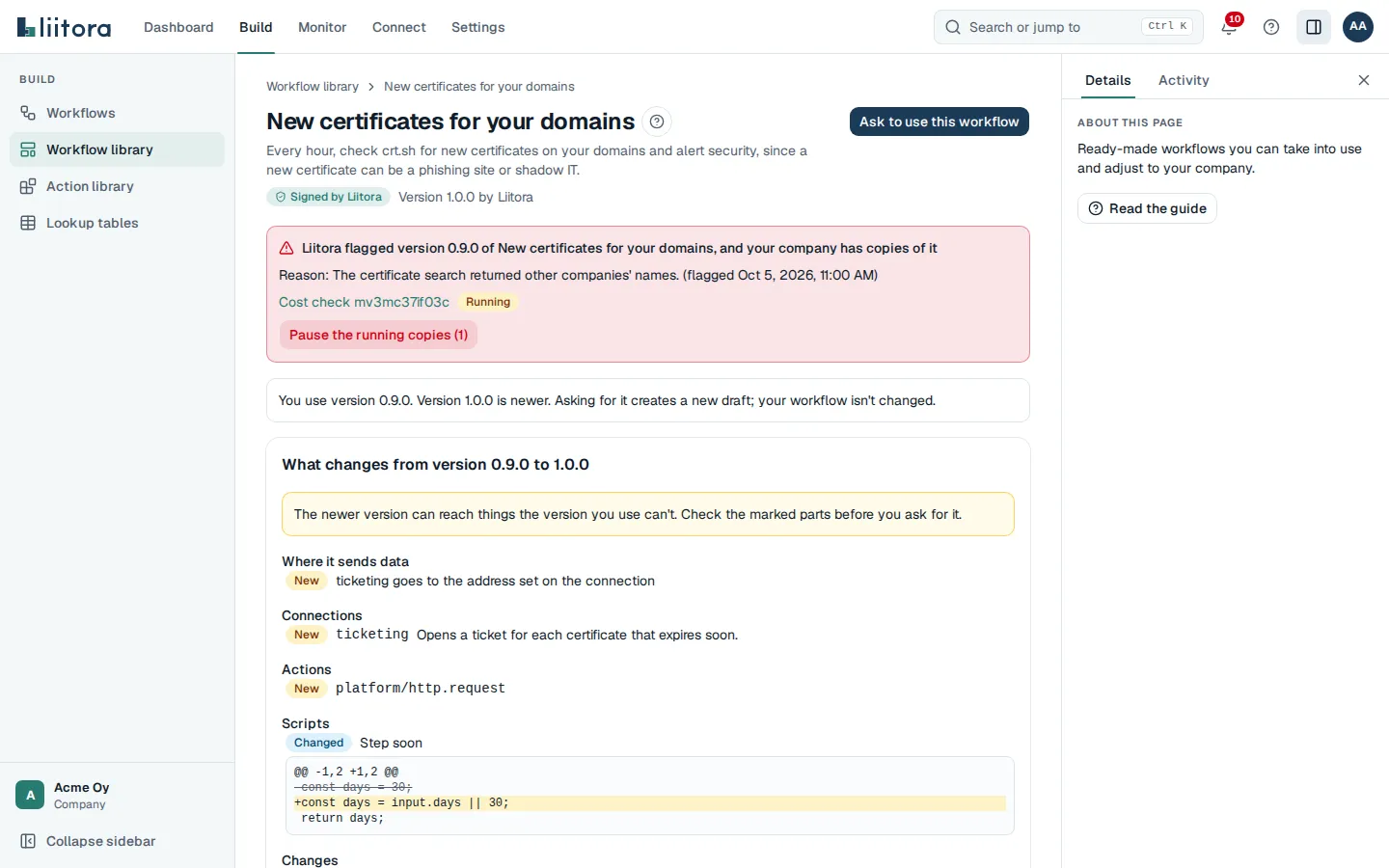
Liitora pauses only copies that are running and leaves drafts and paused copies as they are. It works out which workflows are copies from its own records of what your company copied, so nothing else is touched. Pausing needs the Activate workflows permission, the same as pausing one workflow, so a viewer sees the notice without the button. Each pause is recorded in the audit log with the flagged version. When the copies are paused, look for a fixed version and take it into use as a new workflow. If you decide a copy is safe after all, select Resume on its workflow page.
If something goes wrong
Section titled “If something goes wrong”- The library can’t be checked right now: Liitora couldn’t reach the key that checks signatures, so it shows nothing rather than show something it can’t vouch for. Try again in a minute.
- This library workflow doesn’t exist, or it didn’t pass the checks: the address is wrong, or the version failed its signature or content check.
- item_not_in_use: an API client asked to compare with the version in use, but your company hasn’t copied the workflow yet.
- item_flagged, item_not_verified, requester_cannot_approve, second_approver_required and self_approval_unconfirmed explain why a decision was refused.