

Page: Workflows
Who this is for: people who review and manage their company’s workflows in the Liitora app.
Before you start: you need a Liitora account. Everyone in your company can see this page (the View workflows permission).
The Workflows page lists every workflow in your company. Select a workflow’s name to open the workflow page, or preview the workflow first (see Preview a workflow).
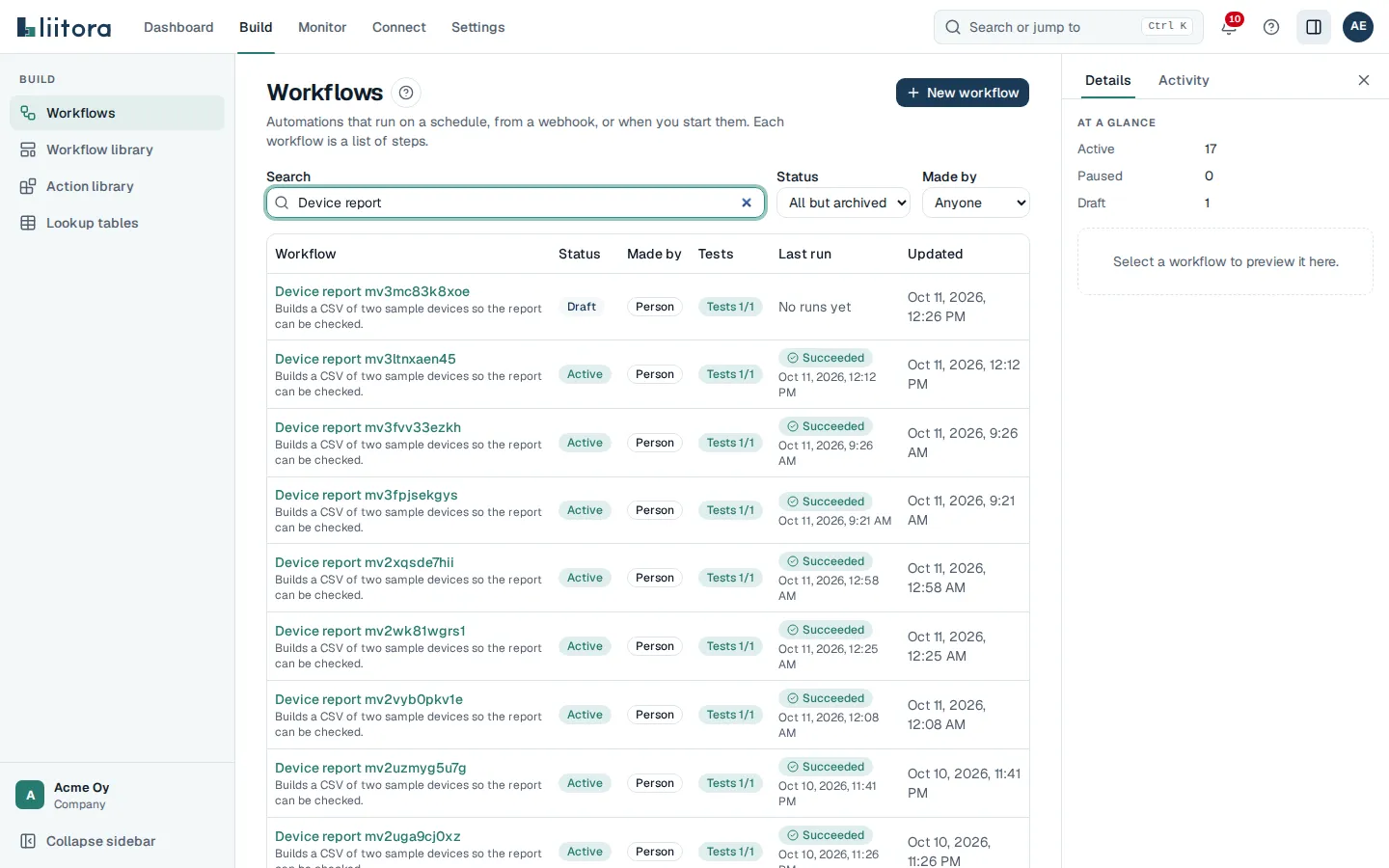
Filters
Section titled “Filters”Filters are kept in the page address, so you can bookmark or share a filtered list.
| Filter | What it does |
|---|---|
| Search | Finds workflows by name or description, among all of them, not only those already shown. |
| Status | All but archived (to start with), Any status, Draft, Active, Paused or Archived. If every workflow is archived, the list says so and offers Show archived workflows. |
| Made by | Anyone, AI assistant, Person or API token: who made the newest version. |
Select Clear filters to show everything again. When nothing matches, the page says No workflows match.
The table
Section titled “The table”| Column | What it shows |
|---|---|
| Workflow | The name. Select it to open the workflow. |
| Status | Draft, Active, Paused or Archived. |
| Made by | AI assistant, Person or API token. |
| Tests | Tests 3/3 means 3 of 3 test cases pass on the newest version. Tests not run or No tests means it can’t be activated yet. |
| Last run | The status and time of the latest run, or No runs yet. |
| Updated | When the newest version was saved. |
The statuses mean:
- Draft: saved, but never activated. It doesn’t run on its own.
- Active: runs on its schedule, webhook and other triggers.
- Paused: doesn’t start new runs. A person, a billing problem or a plan limit paused it.
- Archived: stopped for good. It can’t be changed; its history stays.
Preview a workflow
Section titled “Preview a workflow”Select anywhere on a row, outside its links, to preview the workflow in the side panel without leaving the list. The panel shows its name, status and who made it, what starts it, who may activate it, the share of runs that succeeded in the last 7 days and its last 10 runs as small blocks (oldest on the left, red for a failure). Select Open workflow to open it.
- Double-click a row, or press Enter on it, to open the workflow straight away.
- With the keyboard, move between rows with the arrow keys and press Space to preview one.
- If someone deleted the workflow in the meantime, the panel says This workflow no longer exists.
New workflow
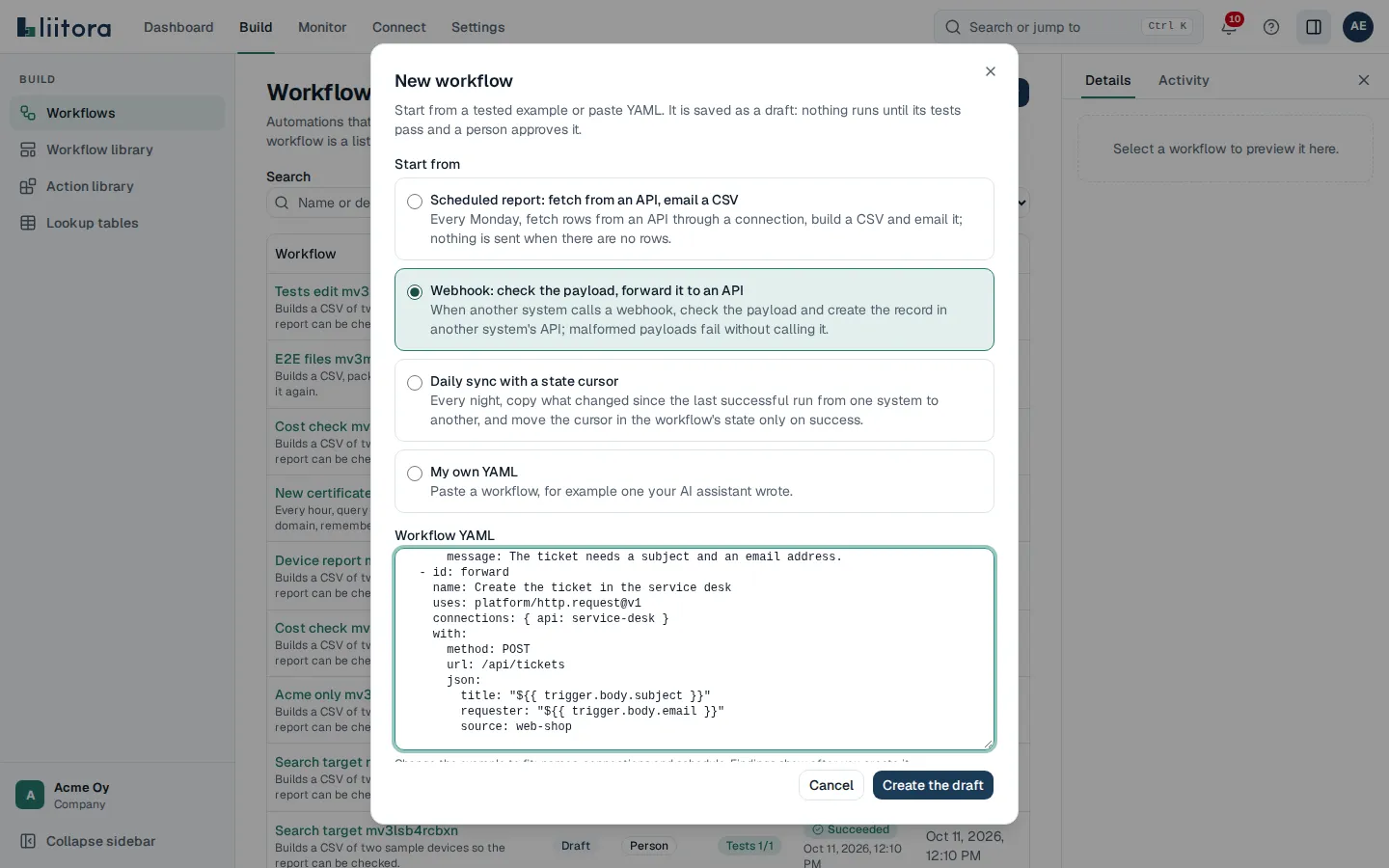
Section titled “New workflow”People who can edit workflows see New workflow. It opens a form with tested examples under Start from and My own YAML. Picking an example fills Workflow YAML with it and brings its tests along. Change the names, connections and schedule, then select Create the draft. The draft opens; nothing runs until its tests pass and a person approves it.
When there are no workflows
Section titled “When there are no workflows”The page says No workflows yet and shows the next step: connect your AI assistant and ask it to create your first workflow.
Old links
Section titled “Old links”This page used to be called Jobs. Links to the old address in the app (/jobs) and in this guide still work and take you here.