

Page: Workflow
Who this is for: people who review, test, approve or manage one workflow in the Liitora app.
Before you start: you need a Liitora account. Open Workflows and select a workflow.
A workflow’s page shows everything about one workflow: what it does, its steps, its YAML, its versions, its tests and its runs. Each tab has its own About link to the matching part of this page.
The header
Section titled “The header”Under the name you see the description and badges:
- the status (Draft, Active, Paused or Archived), and why it is paused: Paused by a person, Paused because of billing or Paused because a plan limit was reached;
- who made the version (AI assistant, Person or API token);
- the tests badge, for example Tests 3/3;
- the version, for example Version 4, version 3 is active;
- the activation policy: A person approves each version, or The AI assistant may activate tested versions. Admins see Change next to it, which opens Who may activate this workflow with both choices and Save. See Let the AI assistant activate tested versions.
The buttons depend on the workflow’s status and your permissions:
| Button | What it does | Who sees it |
|---|---|---|
| Test run | Runs the version you are looking at once with your test connections. Nothing changes in production. You can give Input (optional) as a JSON object. | Edit workflows |
| Run now | Starts a real run of the active version with your production connections. Only on active workflows. | Activate workflows |
| Approve and activate | Opens the approval page for this version. | Approve workflows or Activate workflows |
| Pause | Stops starting new runs. Production runs that were waiting to start stop before their first step. Runs that already started a step finish. | Activate workflows, on active workflows |
| Resume | Makes a workflow that a person paused active again. A billing or limit pause can’t be lifted by hand. | Activate workflows |
| Archive | Stops the workflow for good. It can’t be changed afterwards; its history stays. To use it again, create a new workflow from its YAML. | Activate workflows |
Each button that changes something asks you to confirm first.
Overview
Section titled “Overview”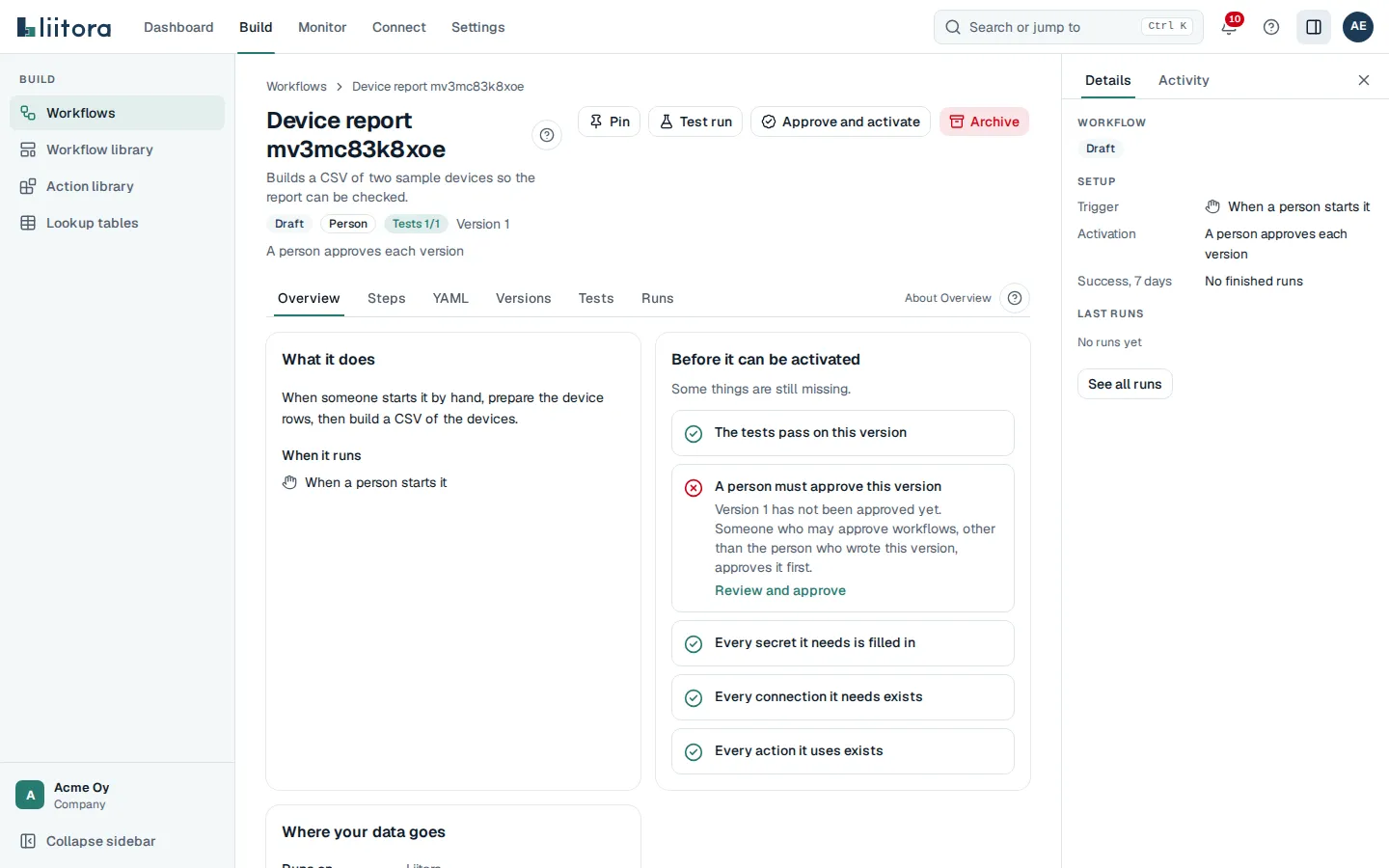
- What it does: the plain-English summary Liitora writes from the YAML.
- When it runs: every trigger in words, for example Every weekday at 08:00 Europe/Helsinki, When the webhook devices-changed receives a delivery or When a person starts it. A workflow with no trigger shows It runs only when another workflow calls it.
- Connections it uses and Secrets it uses, with links.
- Approvals: who approved which version and when.
- Where your data goes: where this version runs, whether webhook payloads enter Liitora, who holds its secrets (names only) and whether logs and results come back in full or as metadata only. How the data path works opens Where your data goes.
- Warnings: problems that don’t stop saving, such as a connection that doesn’t exist yet.
- Update available: shown only when a newer version of an action the workflow uses is in the library. It names the version the steps run now, a compatible update (works with your inputs as they are) and a major update with its breaking changes. Update to saves a new version of the workflow that uses the newer action. It needs passing tests and approval like any other change. People without the Edit workflows permission see the list without the button. See Update available.
- What sync steps remember: shown only when a
sync.diffstep in snapshot mode has saved a snapshot. One row per step and environment, with how many records it saw and when a successful run last saved it. The remembered values are never shown. Reset deletes one snapshot after you confirm, so that step’s next run there treats every record as new. People without the Activate workflows permission see the table without the button. See Reset what a sync step remembers. - Before it can be activated: the checklist. Each item says Done or Missing, and a missing item has a Fix it link:
- The tests pass on this version
- A person approved this version
- Every secret it needs is filled in
- Every connection it needs exists
- Every action it uses exists
When every item is done, it says Ready to activate. For the version that is already running, the list is called Checks on this version and says This version is running., and the page offers no Approve and activate for it.
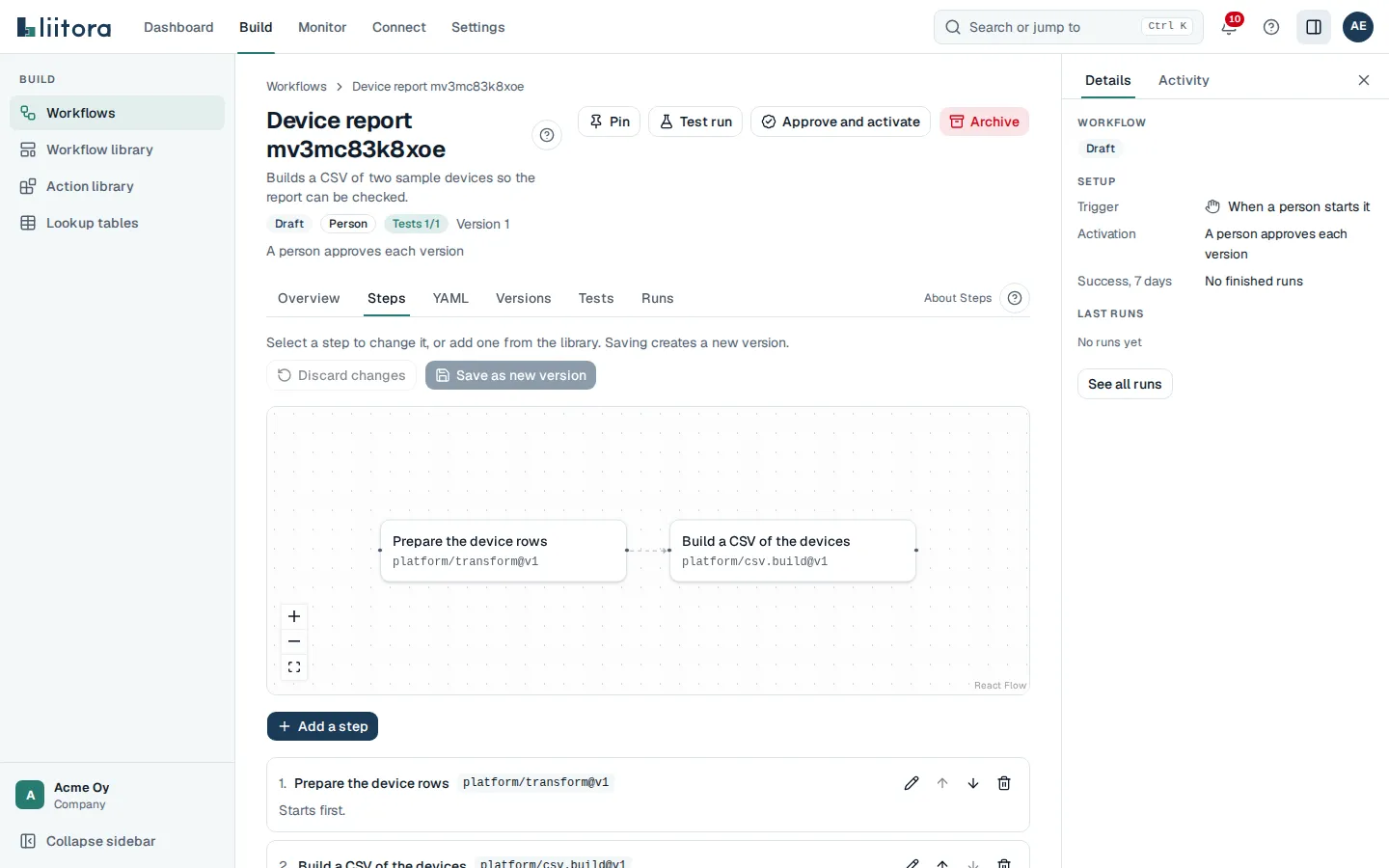
A graph of the steps and a list of the same steps in order. On a narrow screen such as a phone, the graph starts at the first step at a size you can read; drag it or use the zoom buttons to see the rest. For each step you see its name, the action it uses (or Inline script), and labels such as Runs only if, For each item and Continues on error. Each step says Starts first. or Runs after: the steps it waits for.
With the Edit workflows permission you can change the steps here. The Steps tab and the YAML tab edit the same draft, so a change on one shows on the other. Nothing is saved until you select Save as new version, and Discard changes throws the draft away.
- Add a step opens the library. Search for an action and select it. The new step goes at the end of the list, and its form opens.
- Select a step in the graph, or Change next to it in the list, to open its form.
- Move up and Move down change the order. Remove takes the step out of the draft.
- In the graph you can also drag from a step’s right edge to another step to make that step wait for it. Select a line and press Delete to remove it.
The step form has:
- Name: the step’s plain-language name.
- Inputs: one field for each input the action lists, with its type, whether it is required, its default and its allowed values. A field accepts a value or an expression such as
${{ steps.fetch.outputs.items }}. A yes-or-no input, or one with allowed values, is a list to pick from; choose Use an expression… to type an expression instead, and Pick from the list to go back. A value of the wrong type is marked before you save. - Script: for an inline script step, the script in an editor.
- Connections: one choice for each connection the action needs. The list shows your connections of the right kind.
- Runs after: tick the steps this step waits for. With nothing changed, a step runs after the step above it in the list. Run after the step above again goes back to that.
- Run only if: an expression. The step runs only when it is true. Leave it empty to always run.
- Carry on if this step fails: the run goes on to the next steps instead of stopping.
Everything in the graph also works from the keyboard: the list’s buttons and the Runs after checkboxes make the same changes as dragging.
People without the Edit workflows permission see the graph and the list only, with This view is read-only. Archived workflows are read-only too. If the YAML has a mistake, the Steps tab says so; fix it on the YAML tab.
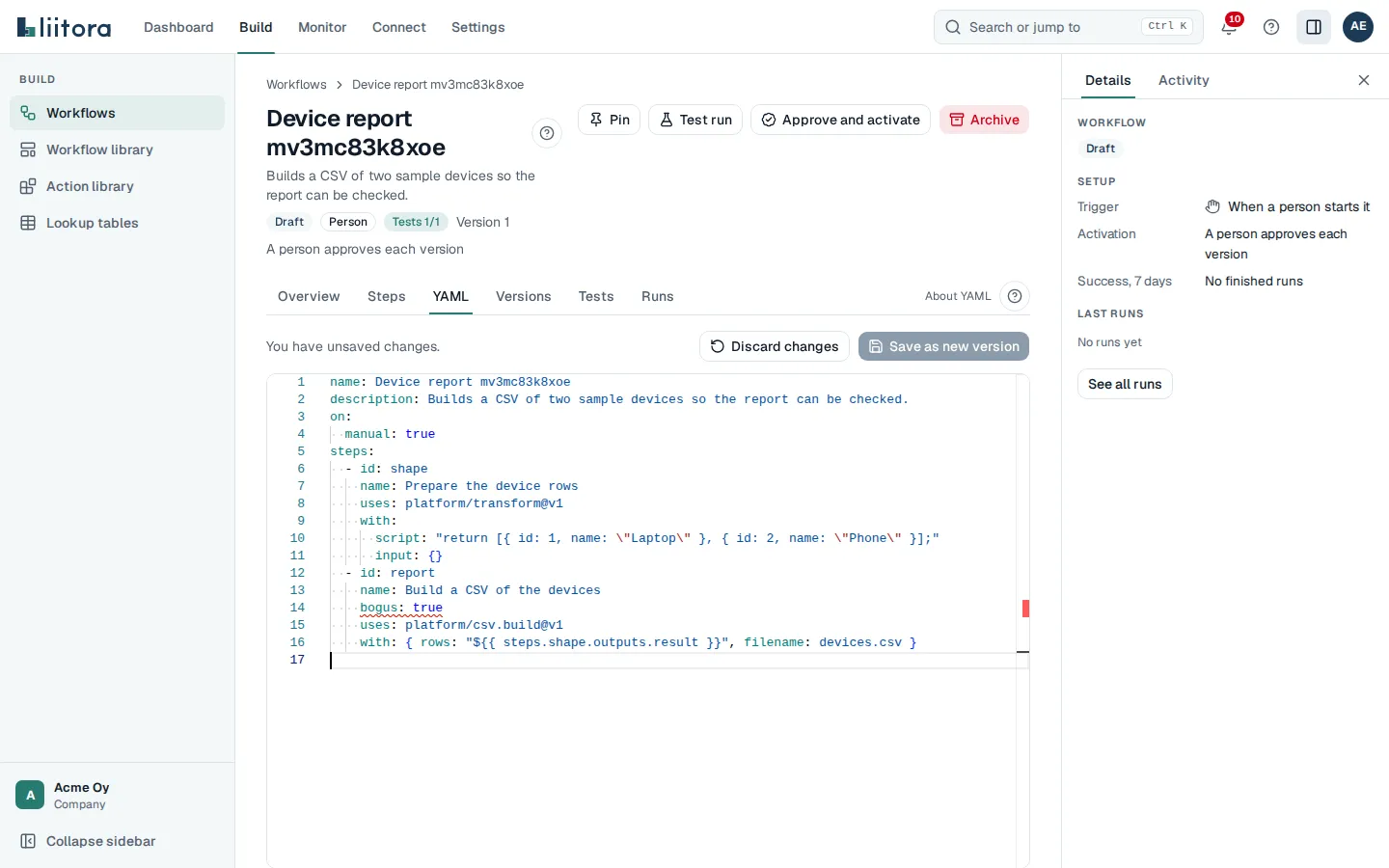
The workflow file in an editor. The workflow file format explains every key.
- Liitora checks the YAML while you type. Problems lists each error or warning with its line and column, what went wrong and how to fix it. In plain English shows the summary.
- Save as new version saves your changes as a new version. Versions never change after they are saved. Tests run on every save.
- Discard changes throws your edits away.
- If someone saved a newer version while you were editing, you see a conflict message. Select Reload the latest version, then apply your changes again.
You need the Edit workflows permission to change the YAML. Archived workflows are read-only.
Versions
Section titled “Versions”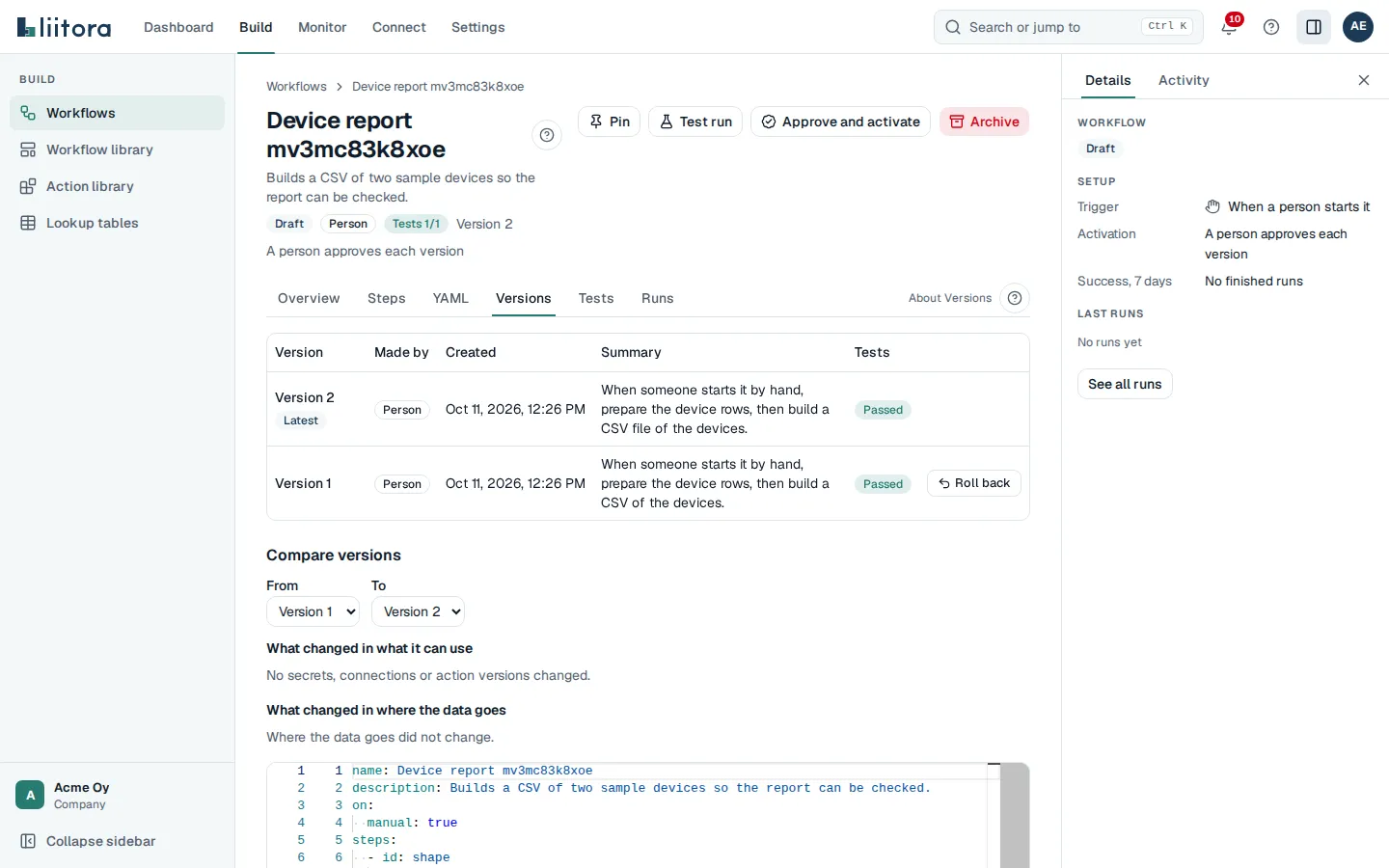
Every saved version, newest first: Version, Made by, Created, Summary and Tests (Passed or Not passed). The badges Latest and Active mark the newest and the running version.
- Compare versions: pick From and To to see what changed in the YAML, in what the workflow can use and in where the data goes. Where the data goes did not change. means all four answers are the same.
- Roll back: creates a new version with the YAML and tests of an old one. Nothing is deleted. You need the Edit workflows permission.
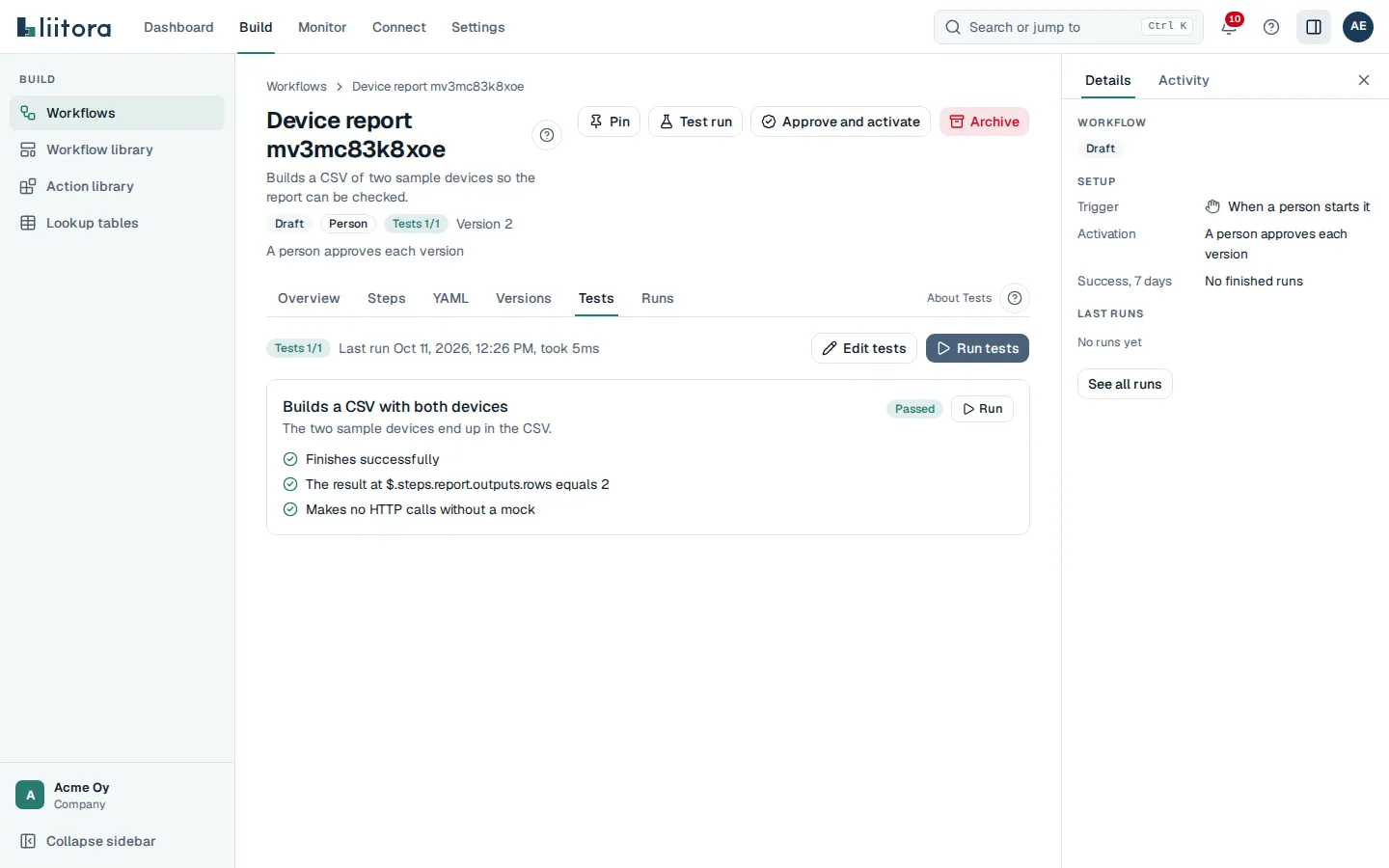
The test cases of the version you are looking at, and their last result.
- Each case shows Passed, Failed, Can’t run or Not run, and What it checks as plain sentences, such as “Sends email to sales@example.com”. A failed check shows Expected and Actual.
- Some required test cases are missing: the version doesn’t meet the required minimum yet, for example it has no test for a failing upstream system.
- Run tests runs the cases again. They also run on every save.
- Run next to a case (people who can edit) runs only that case. The result shows on the case and isn’t saved.
- Edit tests (people who can edit, on the newest version) opens the test cases. Form shows one case at a time in fields: Case to edit, Add a case, Duplicate and Remove this case, then the input event, the mocks, the stubbed steps and what the test expects. A field with a mistake is marked with what to fix. JSON shows all cases as JSON, including settings the form doesn’t show. Save as a new version keeps the YAML, saves the cases as a new version and runs them. It checks that every case has a name and an expect before it saves.
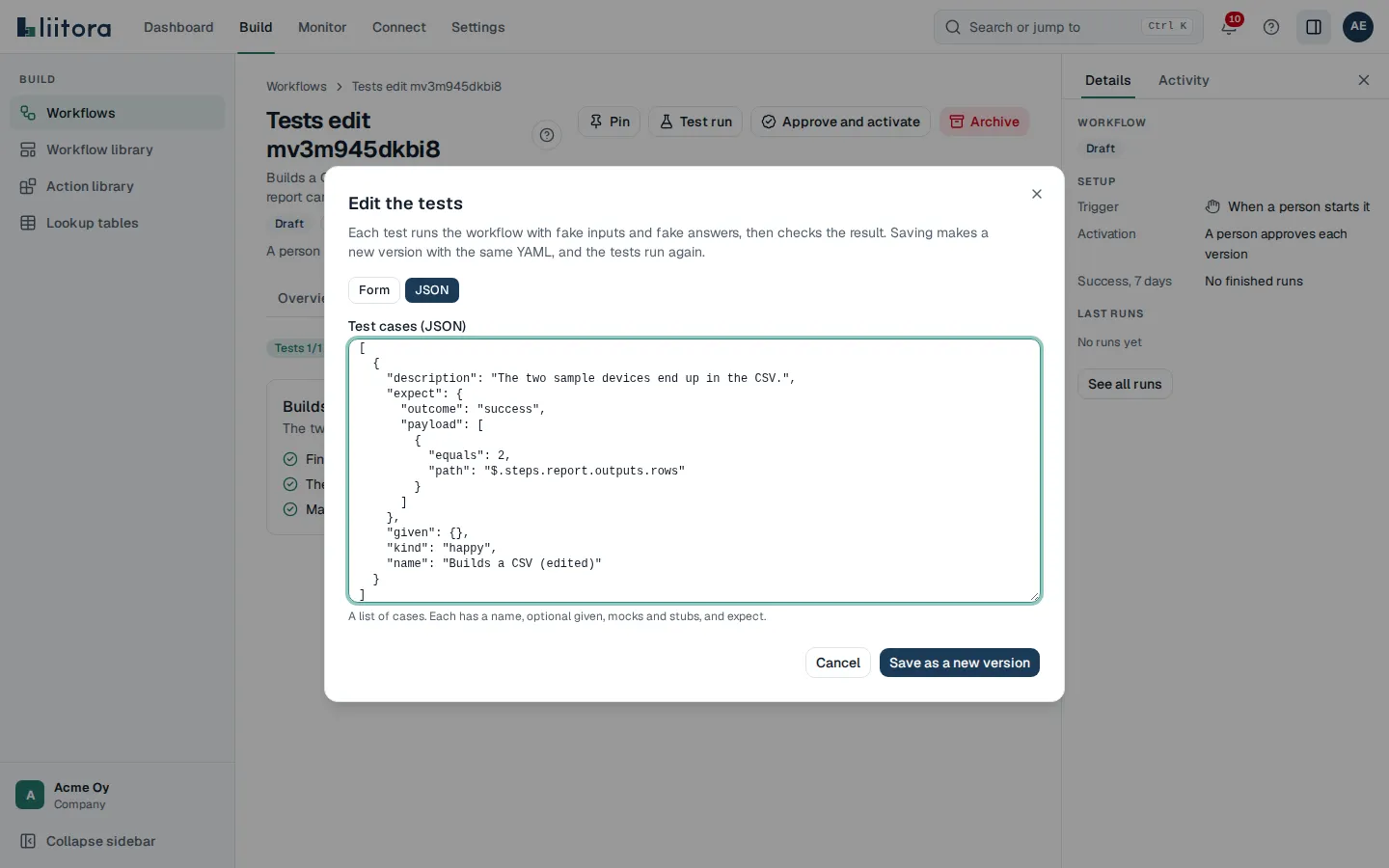
A workflow can only be activated when its tests pass on that exact version. See Read and write workflow tests.
The latest runs of this workflow. Select See all runs of this workflow to open Runs filtered to it. When there are none, the tab says No runs yet.