

Create API tokens
Who this is for: admins who connect scripts, other systems or an AI assistant client to Liitora.
Before you start: you need the Manage API tokens permission (manage_api_tokens), which only admins have, and you must be signed in as a person. AI assistants and other API tokens cannot create, change or revoke tokens.
An API token is a long password that a program sends to the Liitora API instead of signing in. Each token acts for your company only. It can do only what you pick for it, never more than you can do yourself, and it always expires.
Create a token
Section titled “Create a token”- Open Settings.
- Select API tokens in the sidebar.
- Select Create a token.
- Type a Name. Name it after what will use it, for example “Nightly export script”, so you know what breaks if you revoke it.
- Under What the token may do, tick only what the program needs. The reading permissions are ticked to start with, so a new token can look but not change anything. Tick more, for example Start, pause and switch on approved workflows, only if the program needs it.
- Check Expires on. It starts 90 days from today. Pick an earlier date if the program needs the token for a short time. The latest date you can pick is about a year from today. If you clear the date, the token lasts 90 days.
- Type Allowed addresses if the program always calls from known IP addresses (optional). Use addresses or ranges such as
203.0.113.10or10.0.0.0/8, separated by commas. Empty means any address. - Select Create.
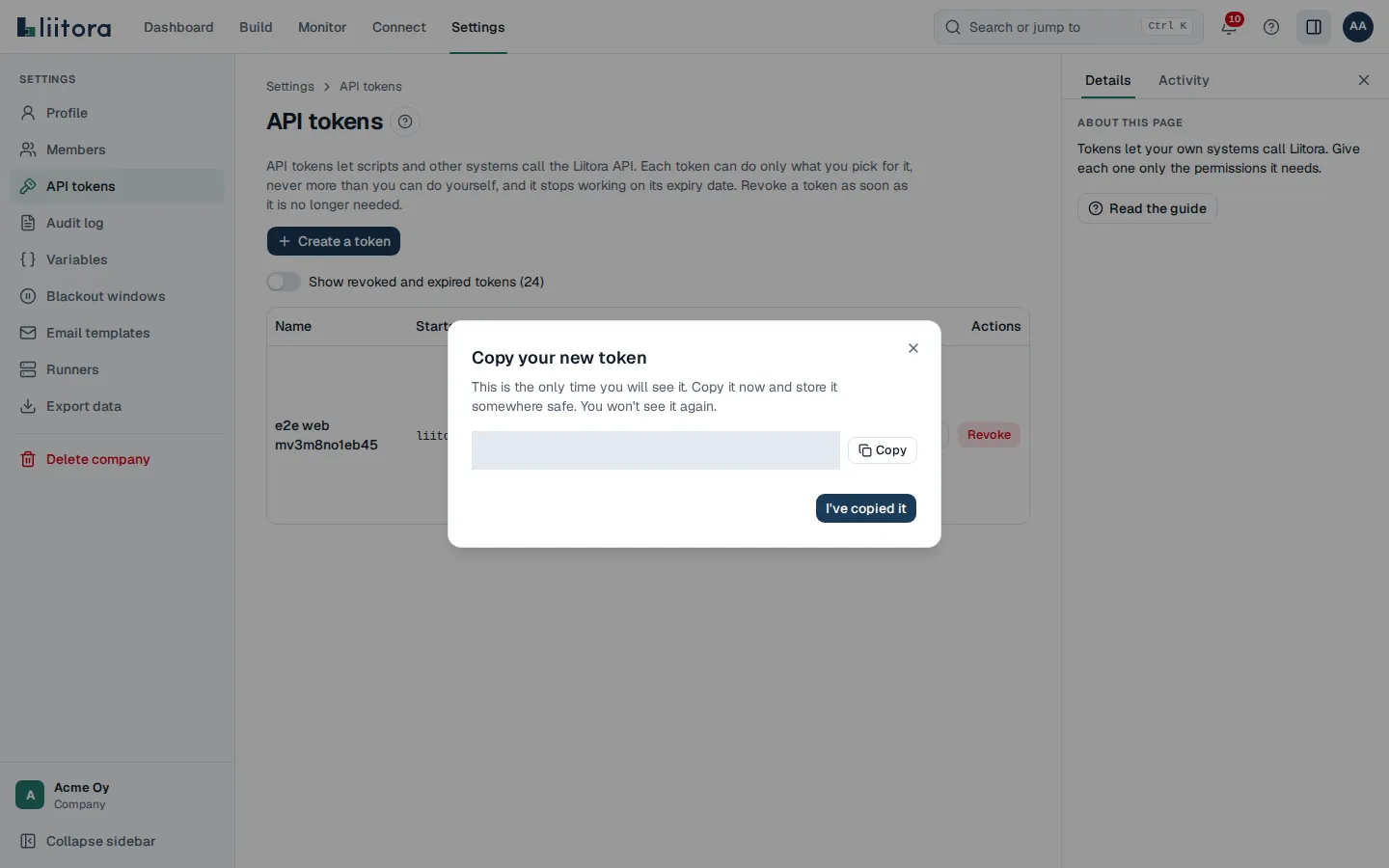
- Select Copy the token and store it somewhere safe, such as your password manager or the other system’s secret store.
- Select I’ve copied it.
Put a reminder in your calendar a week before the token expires. To keep the program working, create a new token, put it where the program reads it, and then revoke the old one.
This is the only time you see the token. Liitora stores only a one-way hash of it, so nobody can show it to you again. If you lose it, revoke it and create a new one.
What a token can do
Section titled “What a token can do”- A token starts with
liitora_, followed by 59 letters and digits. The list shows the start of each token under Starts with, so you can tell them apart. - It can use only the permissions that are ticked for it, and only while the person who created it holds them too. If your role changes, the token can do less too. If you leave the company, the token stops working.
- If the sign-in account of the person who created the token is turned off, the token stops working within about a minute. The list shows it as Paused. It works again if the account is turned back on, unless you revoke it.
- A token always expires, at most a year after you create it. After that it stops working and the list shows it as Expired.
- A token can never approve workflows, show secret values, or create or revoke tokens. Those need a signed-in person, so the dialog does not offer them. See Manage users and roles.
- The token’s creator counts as the author of workflow versions saved with it. So you cannot approve versions that a program or an AI assistant saved with your token. Someone else with the Approve workflows permission must approve them.
Use a token
Section titled “Use a token”Send the token in the Authorization header of every request to the REST API, under /api/v1/:
curl -H "Authorization: Bearer $LIITORA_TOKEN" \ https://<your Liitora API address>/api/v1/workflowsKeep the token in an environment variable or a secret store, never in the code. The API’s full description is at /api/v1/openapi.json.
Find tokens that leaked
Section titled “Find tokens that leaked”Every token has the same shape, so a secret scanner can find one in code or logs. Add this pattern to your scanner, for example as a custom pattern in GitHub secret scanning or a rule in gitleaks:
\bliitora_[0-9A-Za-z]{48,144}\bThe last 6 characters of a token are a checksum of the rest, which lets a scanner tell a real token from a random string. Liitora itself warns when a script, a test or a step setting contains a token (credential_liitora_token). If a token leaked, revoke it at once and create a new one.
The same token works for the MCP server, if your AI assistant’s client can send an Authorization header. See Connect your AI assistant.
Change a token
Section titled “Change a token”You can change a token’s name, what it may do, its expiry date and its allowed addresses. The token itself stays the same, so the program that uses it keeps working and you don’t need to copy anything again.
- Select Edit next to the token. The dialog shows the token’s current settings, including what it may do.
- Change what you need. You can only tick things you can do yourself.
- Select Save changes.
The new settings apply to the next request the program makes. If you untick something, the program can no longer do it.
The expiry date counts from the day the token was created, so a token never lasts more than a year in all, however often you change it. A token that is revoked or has expired can’t be changed. Create a new one instead.
Check and revoke tokens
Section titled “Check and revoke tokens”The API tokens page lists every token with its Access (Read-only or Can make changes, and the list of what it may do), its Status (Active, Paused, Expired or Revoked), when it was created, when it was last used and when it expires. Revoked and expired tokens are hidden until you switch on Show revoked and expired tokens.
To revoke a token:
- Select Revoke next to the token.
- Select Revoke the token.
Anything that uses the token stops working at once. This cannot be undone.
Creating, changing and revoking tokens is written to the audit log. Revoke a token as soon as it is no longer needed, and whenever you think it may have leaked.