

Page: Runs
Who this is for: people who check whether workflows ran and look for failures.
Before you start: you need the View runs permission. Every role has it.
The Runs page lists every time a workflow ran, newest first. Select a run’s start time to open the run page, or preview the run first (see Preview a run).
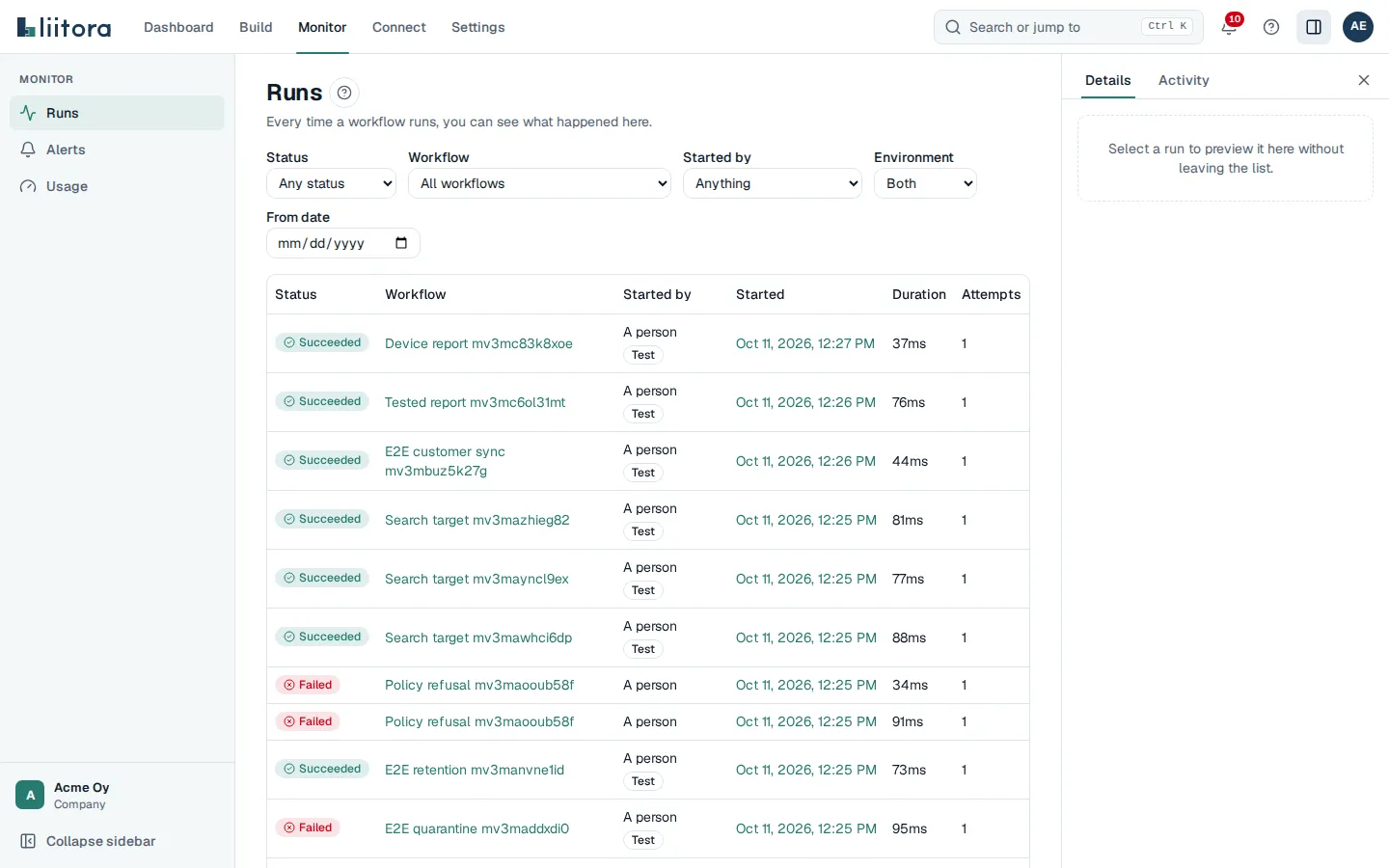
Filters
Section titled “Filters”| Filter | Options |
|---|---|
| Status | Any status, Queued, Running, Succeeded, Failed, Failed for good, Skipped, Cancelled |
| Workflow | All workflows or one workflow |
| Started by | Anything, Schedule, Webhook, A person, API call, After another workflow, Called by a workflow |
| Environment | Both, Production or Test |
| From date | Only runs from this day on |
Select Clear filters to show every run again.
The table
Section titled “The table”| Column | What it shows |
|---|---|
| Status | See the statuses below. |
| Workflow | Which workflow ran. |
| Started by | What started it. Test runs carry a Test badge. |
| Started | When it started. Select it to open the run. |
| Duration | How long it took, or Not yet. |
| Attempts | 1 for a first try. Liitora tries a run again when our side had a temporary problem, and a retried run shows which try it is, for example 2 of 3. |
The statuses mean:
- Queued: waiting to start. A scheduled run can wait in the queue until its time.
- Running: steps are running now.
- Succeeded: every step finished.
- Failed: a step failed.
- Failed for good: every attempt failed, and Liitora won’t try again.
- Skipped: every step was skipped, for example because there was nothing to do.
- Cancelled: a person cancelled it.
Runs are kept for your plan’s retention period. When nothing is there yet, the page says No runs yet.
Preview a run
Section titled “Preview a run”Select anywhere on a row, outside its links, to preview the run in the side panel without leaving the list. The panel shows the run id, its status, the workflow, what started it, when it started, how long it took, the attempt and, for a failed run, the start of the error. Select Open run and logs to open the run page.
- Double-click a row, or press Enter on it, to open the run straight away.
- With the keyboard, move between rows with the arrow keys and press Space to preview one.
- If the run was removed in the meantime, the panel says This run no longer exists.