

Export or delete your data
Who this is for: admins, data protection officers and anyone who needs a copy of their company’s data, or needs it removed.
Before you start: the permissions you need are listed with each item below. To download a full export, or to delete your company, you need to be an admin of your company.
Your data belongs to you. This page shows how to take all of it out of Liitora at once, what you can export item by item, what Liitora deletes by itself over time, and how to delete your company.
Download a full export
Section titled “Download a full export”An admin can download a copy of all your company’s data as one zip file, for your records or to move to another service. This is your right to data portability under the GDPR.
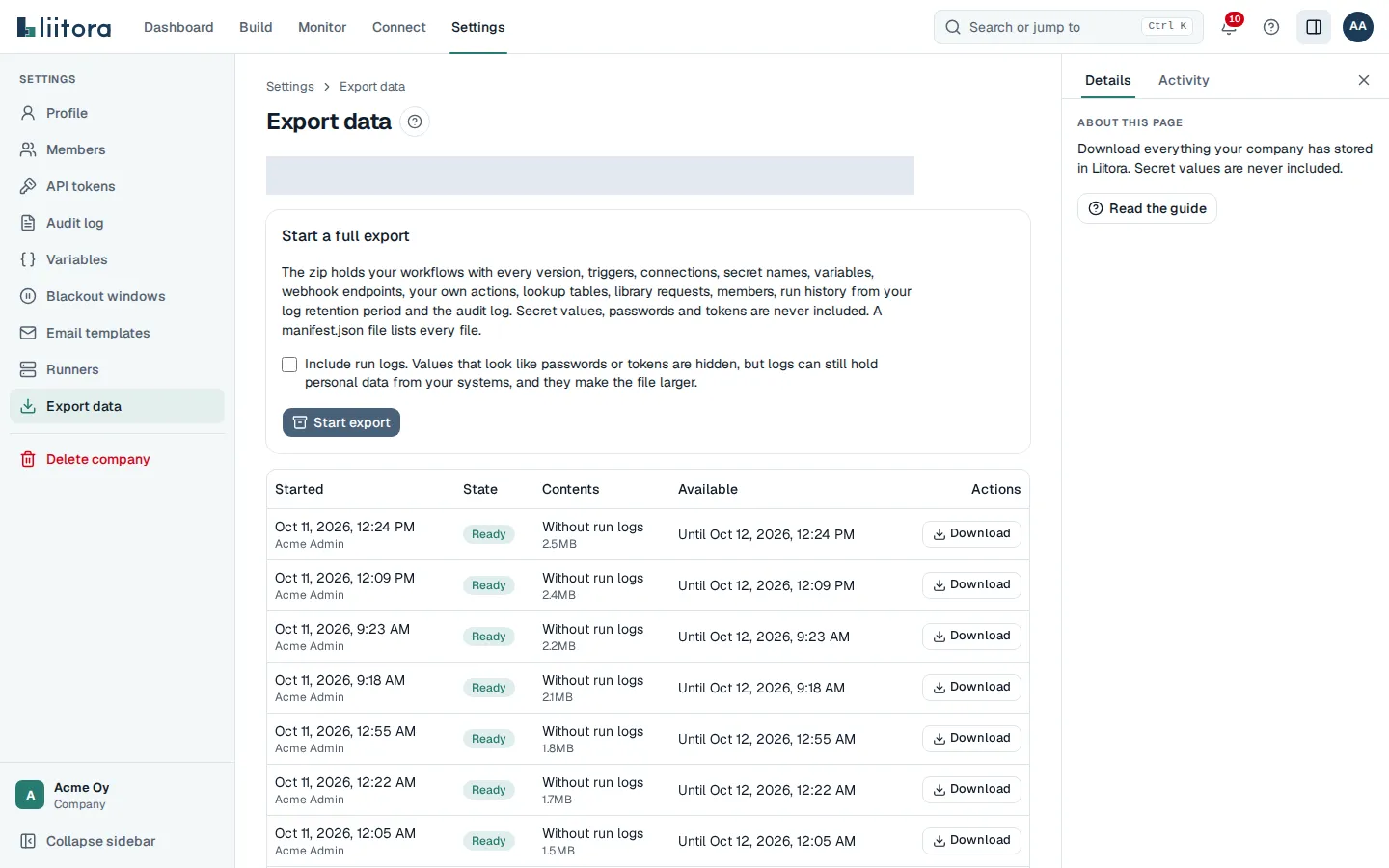
- In Settings, select Export data.
- Choose whether to include run logs. They are off by default. Values that look like passwords or tokens are hidden in them, but logs can still hold personal data from your systems, and they make the file larger.
- Select Start export. The export appears in the list as Waiting, then Being built. It is usually Ready within a few minutes. The list refreshes by itself.
- Select Download next to the ready export. Your browser saves it as
company-export-<date>.zip.
The app uses these API routes: POST /api/v1/company-exports starts an export ({"include_run_logs": true} includes logs), GET /api/v1/company-exports/{id} shows its status, and GET /api/v1/company-exports/{id}/download downloads a ready one. They need a signed-in person with the Export company data permission. API tokens and AI assistants can never get that permission, so a full export always takes an admin. The API’s full description is at /api/v1/openapi.json.
What the zip holds
Section titled “What the zip holds”| Folder or file | What it holds |
|---|---|
manifest.json |
Your company, who started the export and when, the date the run history starts from, how many items of each kind are included, and every file with its size and SHA-256 checksum |
workflows/ |
Every workflow with every version as YAML and JSON, its version history with approvals, and its triggers (schedules, webhooks and file triggers) |
connections.json |
Your connections and what they point to, never their passwords or tokens |
secrets.json |
The names of your secrets and when they changed, never their values |
variables.json and webhook-endpoints.json |
Your company variables and webhook endpoints, without signing secrets |
actions/ |
Your own actions with their source |
lookup-tables/ |
Every lookup table with every version Liitora keeps, as CSV files, with their own manifest.json |
sync-snapshots.json |
What each sync step remembers between runs: the workflow, the step, the environment, how many records and when it was last saved. The remembered values themselves are never exported |
library-requests.json |
Requests to take library workflows into use, and their decisions |
members.json |
The people in your company with their email, name, roles and the date they joined |
runs/ |
Run history from your plan’s log retention period, one run per line. The steps of each run, with their status, timing and errors, and the run’s result. With run logs included, also the logs, with secret values hidden |
audit-log/ |
The whole audit log, one entry per line |
Secret values, passwords, tokens and signing secrets are never part of the export. Runs on your own runners that return only metadata keep their data on your side, so only their status and timing are in the export. For those runs the export has no result and no error messages either.
Limits
Section titled “Limits”- One export is built at a time in your company. While one is waiting or being built, Start export is turned off.
- Your company can start 3 exports in 24 hours.
- An export can be at most 200 MB. If it grows larger, it fails with a message. Start a new export without run logs, or report a problem and we will help.
- A ready export can be downloaded for 24 hours. After that its file is deleted and the export shows Expired. Start a new one when you need it again.
- Only people with the Export company data permission (company admins) can start, see or download exports. API tokens and AI assistants can’t, so the export is not available over MCP.
Starting an export, each download, and an expired or failed export are recorded in the audit log, with who did it, when and the size of the file.
If an export shows Failed, its message says why. It fails when it grows too large, when it stopped before it was finished, or when the person who started it can no longer export company data. Start a new export.
Export single items
Section titled “Export single items”| Data | How to get it | Needs |
|---|---|---|
| A workflow’s definition | Open the workflow, select the YAML tab and copy the YAML. Or GET /api/v1/workflows/{id} with the API, which also returns the tests and the test report. Older versions are on the Versions tab and at GET /api/v1/workflows/{id}/versions. |
View workflows |
| Files a run made (artifacts) | Open the run and select Download under Files, or GET /api/v1/runs/{id}/artifacts/{artifact_id}. Files over 25 MB cannot be downloaded this way. |
View runs |
| Run history and logs | Open Runs, or GET /api/v1/runs and GET /api/v1/runs/{id}/logs. |
View runs |
| Usage for invoicing | GET /api/v1/usage/invoice?period=2026-09&format=csv. See Understand usage and limits. |
Manage billing |
| The audit log | Settings > Audit log, or GET /api/v1/audit-log page by page. |
View audit log |
| Your own actions | Open Action library, open the action and read its Source, or GET /api/v1/actions/{id}. |
View workflows |
| Lookup tables | Open the table on Lookup tables and select Export as CSV, or GET /api/v1/lookup-tables/{name}/export. Older versions export too. See Use lookup tables. |
View workflows |
For the API, use an API token. A read-only token is enough for everything above except the invoice export.
Secret values are not part of an export. You entered them, and you keep them in the systems they came from. An admin can show one value at a time on the Secrets page, and each time is recorded in the audit log.
What Liitora deletes by itself
Section titled “What Liitora deletes by itself”Liitora keeps data only as long as it is needed. These are the defaults. Your plan can change some of them. See Limits per plan.
| Data | Kept for |
|---|---|
| Run logs | Your plan’s log retention: 30, 90 or 365 days in the example plans |
| Files made by runs (artifacts) | 30 days by default. Each file shows its date in the run’s Files panel |
| Received webhook deliveries | 14 days by default (30 days in the Enterprise example plan). The runs they started keep their summary |
| Alert delivery records | 90 days after they finished |
| Old lookup table versions | The last 20 versions of each table, plus any version a run still reads |
Run summaries, workflow versions, approvals and the audit log are kept while your company uses Liitora, so you can always see who changed what. They are erased when the company is deleted.
Delete single items
Section titled “Delete single items”| Item | How | Can it be undone |
|---|---|---|
| A secret | Secrets > Delete. Removes the value and all its versions. | No |
| A connection | Connections > Delete on one environment. The secrets it used are kept. | No |
| A webhook endpoint | Open the endpoint on Webhooks > Delete. Removes its address, its received deliveries and its signing secret. | No |
| A lookup table | Open the table on Lookup tables > Remove table. Removes every version at once. | No, but you can import its CSV export again |
| An API token | Settings > API tokens > Revoke. | No |
| What a sync step remembers | Open the workflow, find What sync steps remember on the Overview tab and select Reset. See Reset what a sync step remembers. | No. The next run starts over |
| A workflow | Open it and select Archive. It stops running for good and cannot be changed. Its versions and run history stay, for the audit trail. | No, but you can create a new workflow from its YAML |
Delete your company
Section titled “Delete your company”An admin can delete the whole company and everything it holds in Liitora. This is your right to erasure under the GDPR. It cannot be undone, so download a full export first if you want to keep a copy. You cannot start an export after you confirm.
- In Settings, select Delete company.
- Read what will be erased and when.
- Type your company’s name exactly as it is shown. The Delete the company button turns on only when the name matches.
- Select Delete the company. The page confirms the date after which everything is erased, and offers Sign out.
The app uses these API routes: GET /api/v1/company-deletion shows the name to type and the waiting period, and POST /api/v1/company-deletion with {"confirm_name": "<your company name>"} asks for the deletion. They need a signed-in person with the Delete company permission, which only company admins have. API tokens and AI assistants can never get that permission, so the deletion is not available over MCP or to scripts.
What happens next
Section titled “What happens next”- At once: nobody can sign in to the company any more. API tokens, AI assistants and your own runners stop working, no trigger, schedule or webhook starts a run, and no alert or summary email is sent. Asking a second time answers that the deletion is already scheduled.
- For 7 days: nothing is erased yet. If you asked by mistake, tell us within those 7 days and we can stop the deletion and bring the company back as it was. Nobody can sign in to the company any more, so use the support contact in your agreement with Liitora, or Report a problem from another company you belong to.
- After 7 days: Liitora erases everything the company holds. It runs in steps, and a step that fails is tried again until everything is gone.
What is erased
Section titled “What is erased”- Workflows with every version, approvals, tests and the requests to take library workflows into use.
- Runs, run logs, received webhook deliveries and the files runs made.
- Triggers, webhook endpoints, connections and their certificates, secrets with their values, variables, templates, your own actions, lookup tables and what sync steps remember.
- API tokens, invites, members, alerts, usage records and the audit log.
- People who belong to no other company lose their Liitora account. Their sign-in account itself is kept, without its link to your company. People who also belong to another company keep their access there.
Other companies’ data is never touched, even when it has the same names.
What we keep
Section titled “What we keep”We keep a short record that the company was deleted: the company’s internal id, the internal id of the person who asked, when it was asked and done, and how many items of each kind were erased. It holds no names, emails or content. We keep it to show that the deletion happened.
If your subscription ends, your workflows are paused and nothing is deleted right away. Your data is kept for the retention period, and then deleted, or exported to you first if you ask. The details will be in the data processing agreement, which will be published before launch. See Data, privacy and GDPR.