

Page: Approve
Who this is for: admins who approve and activate workflows.
Before you start: you need the Approve workflows permission to approve, and the Activate workflows permission to activate. Open a workflow and select Approve and activate, or open the Approve & activate link your AI assistant showed you.
The approval page shows one version of a workflow, so you can decide whether it may run for real. The page title is Approve and the workflow’s name.
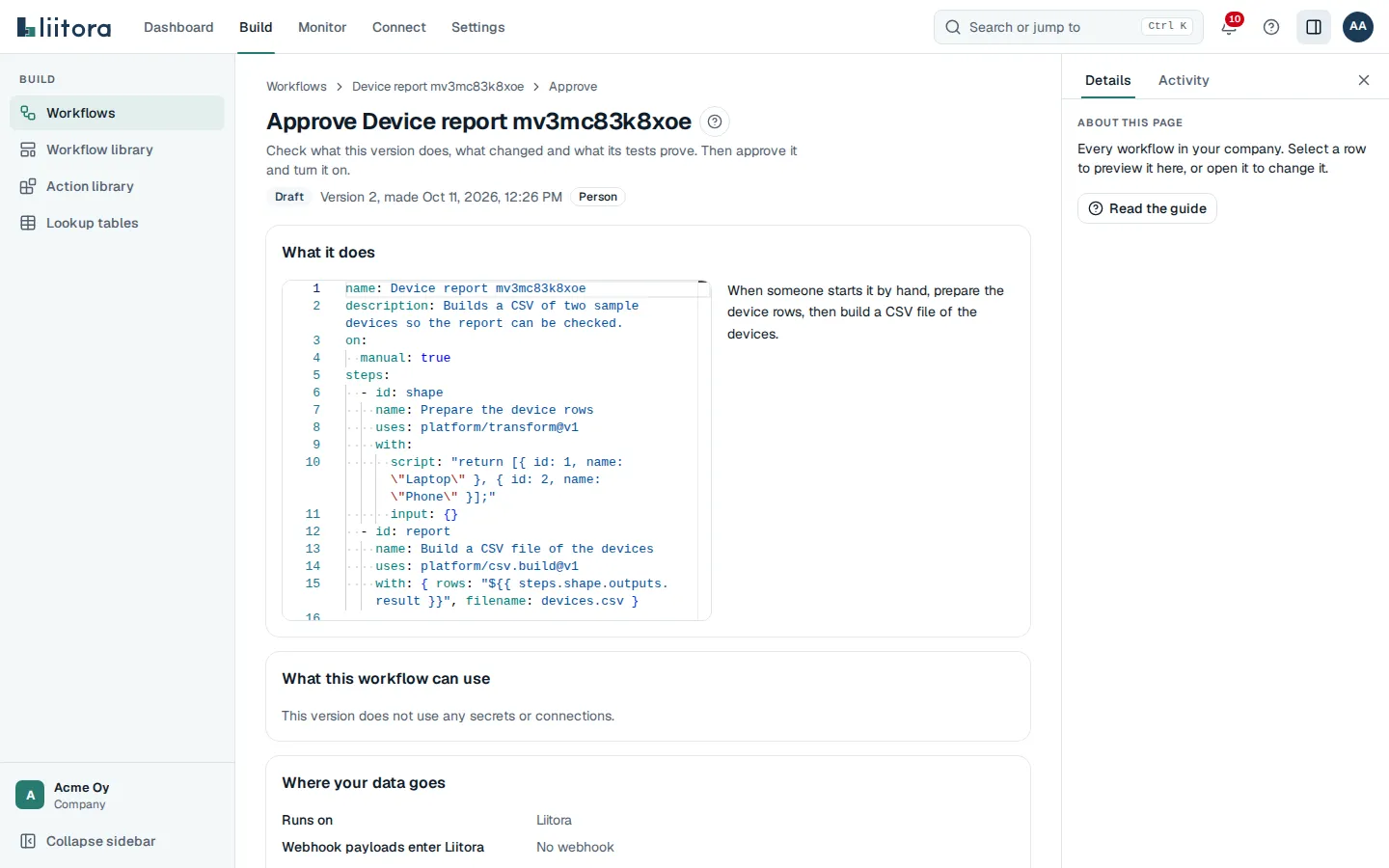
What you see
Section titled “What you see”- What it does: the YAML of this version and the plain-English summary.
- AI in this workflow (only when the version has an AI step): each AI step with its AI provider, Connection and what it Sends, a note about AI answers, and the box I have read this and confirm the AI use. When an AI answer decides what is sent or changed, the list AI answers that decide what is sent or changed and a second box to tick. See AI in workflows.
- What this workflow can use: the secrets and connections each step reads, the sets any called workflows use (labelled with their name), and the pinned action version for each step. This is exactly what a run of this version may use; anything else is refused. See Least privilege for runs.
- Where your data goes: four answers for this version: Runs on, Webhook payloads enter Liitora, Secrets held by (names only, never values) and Logs and results returned. A workflow on a runner group also lists what still passes through Liitora, such as inputs of runs started by hand. See Where your data goes.
- What changed from version 1 to version 2: the difference to the version before, including what changed in where the data goes, for example “Runs on changes from “Liitora” to “Runner group on-prem”.“, and what changed in what it can use, for example “This version can use 2 new secrets: erp_api_key, smtp_password.” A pin change, such as a new action version for a step, is shown the same way. What it no longer uses is shown muted. For the first version it says there is nothing to compare.
- What the tests check: every test case and the sentences it checks.
- Before it can be activated: the same checklist as on the workflow’s Overview tab.
- Expected cost: about how many runs a month, the compute units each and in total, the share of your plan and, when your plan has a price, the cost in euros. A line below says whether the runs come from the schedule or from the last 30 days.
- If a newer version exists, the page says so and links to Review the newest version.
Your decision
Section titled “Your decision”- Add a Comment (optional), for example “checked the recipients with IT”.
- Select Approve this version. The page says Version approved.
- Select Activate. The page says The workflow is active. Its schedules and triggers start now, and this version runs in production.
When a button is disabled, the text under it says why:
| Message | What it means |
|---|---|
| You wrote this version, so someone else needs to approve it. | The author can never approve their own version. For API tokens, the token’s creator counts as the author. |
| You need permission to approve workflows. Ask an admin in your team. | Only admins approve. |
| To approve, tick the confirmations under AI in this workflow. | The version uses AI. Tick the boxes in AI in this workflow first. |
| This version is already approved. | Go on to Activate. |
| Activation needs every item in the checklist to be done first. | Fix the missing items first. |
| This version is already active. | Nothing more to do. |
| Archived workflows can’t be approved. | Create a new workflow from the YAML instead. |