

Read and write workflow tests
Who this is for: people who review workflows, and anyone whose workflow cannot be activated because of its tests.
Before you start: to run tests you need the Edit workflows permission (edit_workflow). Anyone who can see a workflow can read its test results.
Every workflow version carries its own test cases. A test case says “given this input and these answers from other systems, the workflow should do this”. Liitora runs the cases against the real workflow engine, with every outside system replaced by the answers in the case. Nothing reaches your real systems, and no real email is sent.
A version can only be activated when all its cases pass on that exact version and the required cases are there. That way you review what a workflow does in plain sentences, not only its code.
Read the Tests tab
Section titled “Read the Tests tab”- Open Workflows and open the workflow.
- Select the Tests tab.
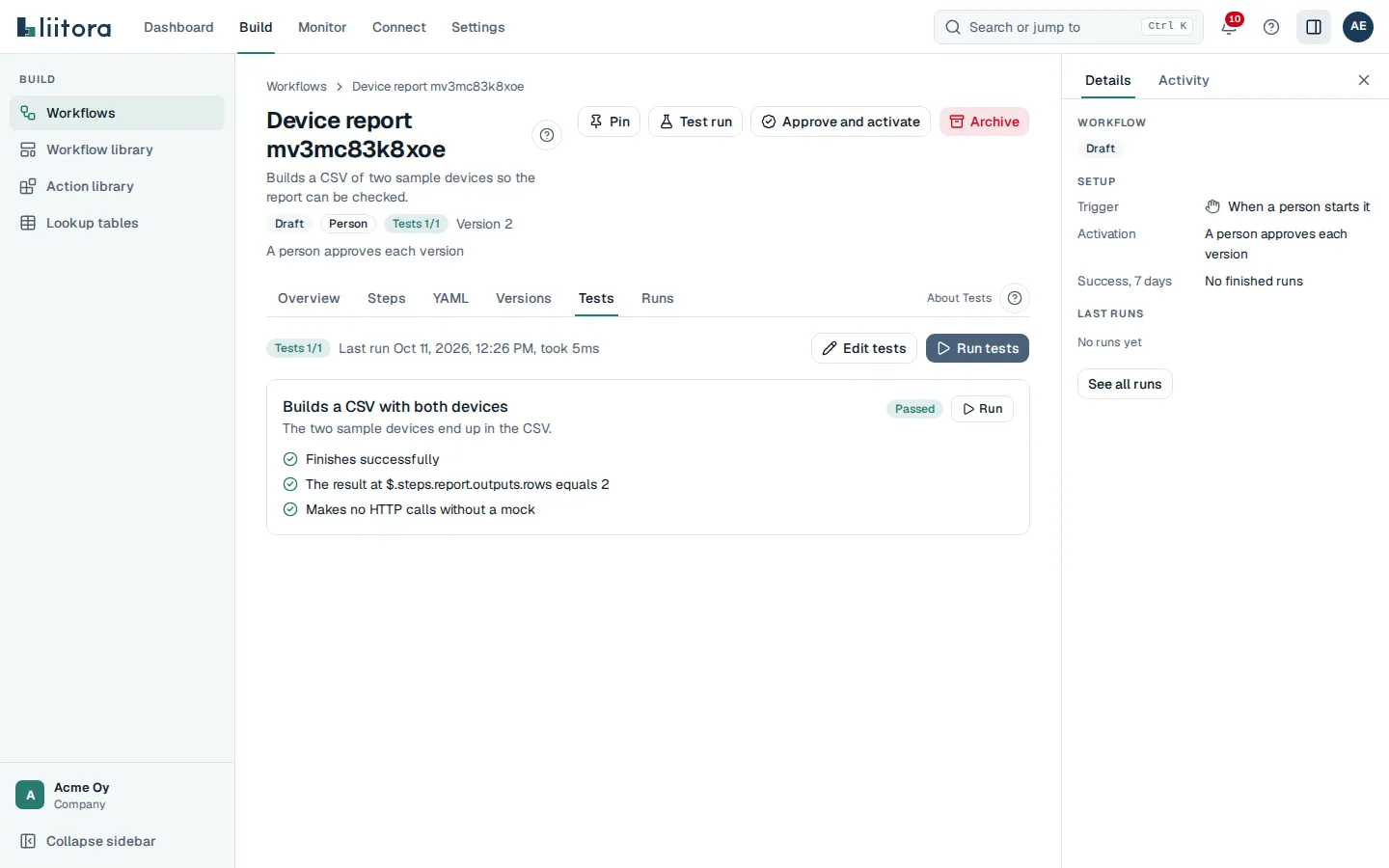
The top line shows how many cases passed, for example Tests 3/3, and when the tests last ran. Each case shows:
- its name and description,
- its status: Passed, Failed, Can’t run (the case itself has a problem) or Not run (the time budget ran out before it started),
- What it checks: one sentence per check, such as “Sends email to sales@example.com” or “Calls GET /api/v1/orders exactly once”, with a mark for pass or fail,
- for a failed check, Expected and Actual. Secret values and credential headers are hidden in both.
If required cases are missing, the tab says Some required test cases are missing: and lists them, with how to fix each one.
Run the tests
Section titled “Run the tests”Tests run each time a version is saved. To run them again:
- Open the Tests tab.
- Select Run tests.
The result is stored on that version. Each case has 20 seconds and all cases together have 60 seconds. Cases that do not fit are reported as Not run.
To check one case while you work on it, select Run next to that case. Its result shows on the case with the note that it isn’t saved. The stored result of the version doesn’t change, so run all tests before you approve.
Your AI assistant can run them too, with run_workflow_tests. It can also run a single case by its position in the list.
The required cases
Section titled “The required cases”Liitora checks that the cases cover what can go wrong. Which cases are needed depends on what the workflow does.
| Required case | Needed when | A case counts when it |
|---|---|---|
| Happy path | Always | expects outcome: success and checks at least one concrete thing (a recipient, a value, a call) |
| Upstream failure | A step calls another system: it uses a connection, platform/http.request, platform/webhook.send, a library action or another workflow, or a script uses ctx.connection or ctx.http |
has kind: upstream_failure, or mocks an answer of 5xx or 429 or a slow answer, or stubs a failed step |
| Empty or nothing to do | A step has an if:, or a script calls ctx.skip( |
has kind: empty, expects outcome: skip, expects a step to be skipped, or expects no email (recipients: []) |
| Malformed payload | The workflow has a webhook trigger | has kind: malformed_payload, or sends an event and expects error or skip |
A version without any cases cannot be activated. The error codes are tests_not_run and tests_failed.
Write a test case
Section titled “Write a test case”The easiest way is to ask your AI assistant: “Add test cases for this workflow, including what happens when the order system is down.” It writes the cases, saves a new version and shows you the results.
Test cases are a JSON list stored with each version. When you save new YAML on the YAML tab, the version keeps the tests of the version before. To change the tests themselves, ask your AI assistant, or send them with the REST API or the update_workflow tool.
To edit the cases in the app, open the workflow’s Tests tab and select Edit tests. The cases open in a form:
- Pick the case in Case to edit, or select Add a case or Duplicate.
- Fill in the parts of the case:
- About the case: the name, a description and the Input event (JSON) the trigger sends.
- Answers from other systems: one mock per request, with what it matches (method, path, URL or body) and the answer (status code and body).
- Stubbed steps: steps that don’t run and end the way you set.
- What the test expects: how the run ends, checks on the result and step results.
- Select Save as a new version. It keeps the YAML, saves the cases and runs them.
If a field has a mistake, such as JSON that isn’t valid or a status code that doesn’t exist, the form marks the field and says what to fix. Nothing is saved until it is fixed.
The form shows the most used parts of a case. Settings it doesn’t show, such as given.secrets or expect.http_calls, are listed under the form and kept as they are. To change them, select JSON at the top and edit the cases as JSON in the format below. You can switch between Form and JSON at any time. See the Tests tab.
Save a run as a test
Section titled “Save a run as a test”A run that went wrong is often the best test case. To turn a finished run into a case:
- Open the run on the Runs page.
- Select Save as test. You need the Edit workflows permission.
- Check the case. Liitora fills in the run’s input as the event, the answers the run got from other systems as mocks, and how the run ended. Steps whose answers weren’t recorded are stubbed with their saved outputs.
- Change the name, and add a check on the result so the case proves something.
- Select Add the test. The case is added to the tests of the workflow’s newest version, as a new version, and the tests run.
Liitora never copies secret values into the case. Values that look like credentials, such as tokens and passwords, are replaced with [REDACTED], and the dialog lists where.
A run in production used real data, which can include personal data such as names and email addresses. For such a run the dialog says so, and you must confirm that you have checked the data before the case is saved. Replace real personal data with made-up values first. Your AI assistant can make cases from test runs with draft_test_from_run, but not from production runs: those need a person to review them in the app.
A cancelled run can’t be saved as a test, because it has no outcome to check.
Here is a case for a weekly report that fetches open orders and emails them as a CSV:
{ "name": "Emails the sales team a CSV of the open orders", "description": "Two open orders lead to one email with a two-row CSV attached.", "kind": "happy", "given": { "http": [ { "match": { "method": "GET", "path": "/api/v1/orders" }, "respond": { "status": 200, "json": { "orders": [ { "id": "SO-1001" }, { "id": "SO-1002" } ] } } } ] }, "expect": { "outcome": "success", "recipients": ["sales@example.com"], "payload": [ { "path": "$.steps.report.outputs.rows", "equals": 2 }, { "path": "$.emails[0].attachments[0].name", "equals": "open_orders.csv" } ], "http_calls": [{ "method": "GET", "path": "/api/v1/orders", "count": 1 }] }}And the upstream failure case for the same workflow:
{ "name": "Fails cleanly when the order system is down", "kind": "upstream_failure", "given": { "http": [ { "match": { "method": "GET", "path": "/api/v1/orders" }, "respond": { "status": 503 } } ] }, "expect": { "outcome": "error", "failed_step": "fetch", "recipients": [] }}Some rules to know:
givensets the scene: the triggerevent, a frozen clock (now), HTTP answers (http), steps to skip with a fixed result (stub_steps) and saved state (state).expectsays what must happen: theoutcome, who gets email, values in the result (payload), which HTTP calls are made (http_calls) and what single steps return (step_outputs).- Any HTTP request without a matching mock fails the case, so a test never reaches a real system.
- Use dummy secrets only. Put them under
given.secretsif a case needs a specific value. Secrets you do not list get a generated dummy. Cases that contain something that looks like a real credential are refused and no case runs.
Every field is described in the test case format.